
Camera, microphone, and location permissions are not one-time decisions. An app may have needed the microphone for a call last year, the camera for a single QR code, or precise location for a delivery that already arrived. The safest permission setup changes with the way you use the phone.
A useful review asks three questions: Does the app still need this sensor? Does it need it only while you are actively using the app? Does recent access match something you actually did? The answer should come from function and timing, not from fear that every permission means spying.
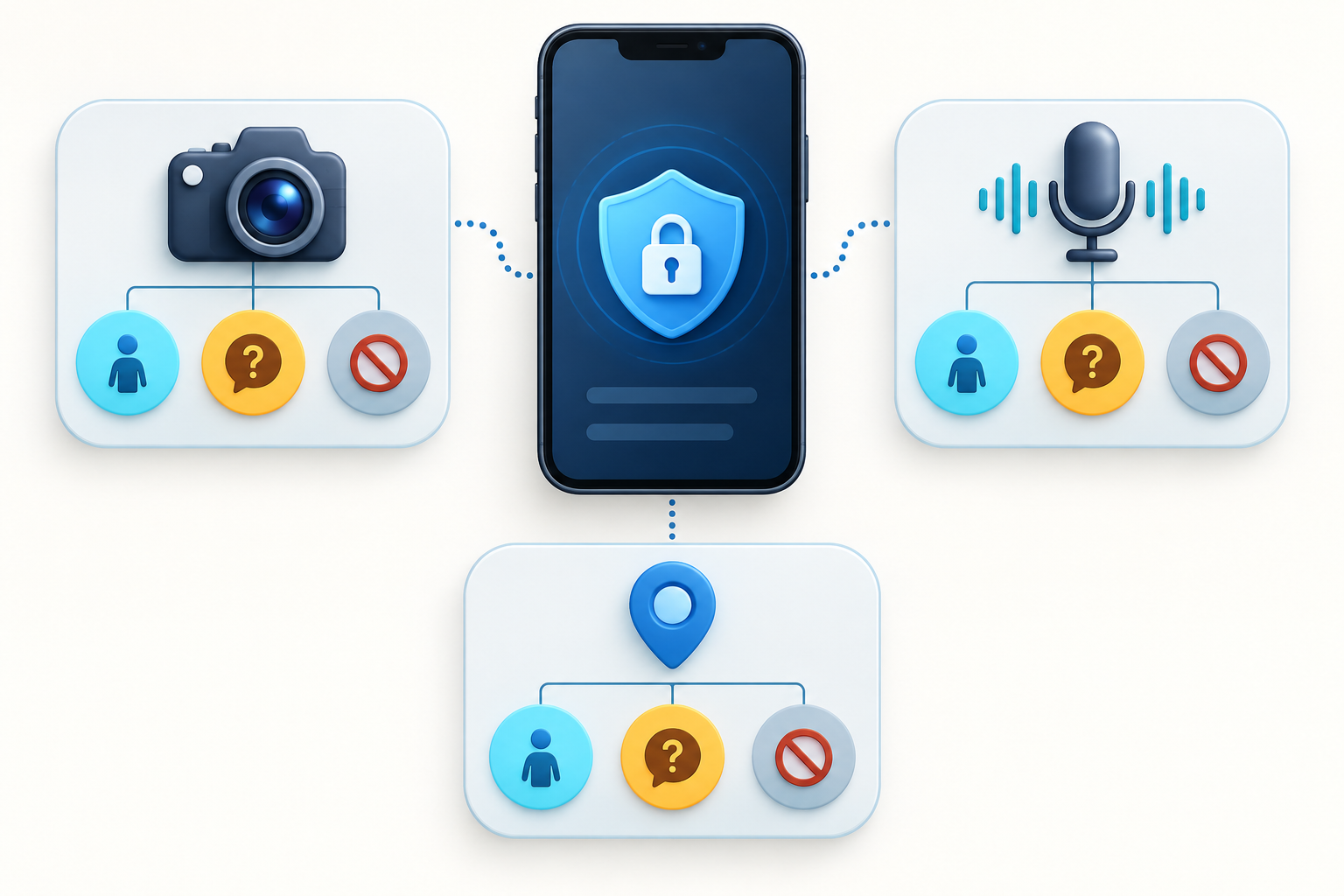
Before changing anything, understand the permission levels
Phone labels vary by operating-system version and manufacturer, but these patterns are common:
- Never or Do not allow: the app cannot use that permission through the normal system interface.
- Ask every time: you make a new decision for a future use.
- Only while using the app: access is allowed when the app is visibly active, with limited background behavior depending on the platform and feature.
- Allow once: temporary access for the current task or session.
- Always or background location: location can be available when you are not actively looking at the app.
- Precise or approximate location: the app receives a more exact position or a broader area.
An app can function with different levels. A weather app may work with approximate location while active. A navigation app may need precise location during a trip. A family-safety or device-finding service may need background location to deliver the feature you deliberately enabled.
Make a permission map by sensor
Review by permission type rather than opening apps one at a time. This makes outliers obvious. If five expected apps have camera access and an unrelated calculator appears beside them, the mismatch deserves investigation.
Create three short groups:
- Expected: the sensor directly supports a feature you use.
- Conditional: the feature is useful, but a narrower level should work.
- Unexplained: you cannot connect the access to a feature or do not recognize the app.
Do not publish screenshots of the permission list without redacting personal app names, work tools, and safety-related services.
Android: use Permission Manager
On a current Android phone, open Settings, then look under Security & privacy or Privacy for Permission Manager. Select Camera, Microphone, or Location to see which apps are allowed and denied. Manufacturer menus can differ, and managed devices may show controls set by an administrator.
Open each app’s entry and choose the narrowest level that preserves the function you want. For a rarely used scanner, Ask every time or Allow only while using may be enough. For an app that has no sensible reason to record audio, deny microphone access and investigate why it requested it.
Android can pause activity or remove permissions from unused apps. Review that setting for apps that must work infrequently in the background, such as an emergency or accessibility tool, before assuming a future failure is malicious.
Android: check the Privacy Dashboard
Permission Manager shows what an app is allowed to do. Privacy Dashboard helps show what recently happened. Google’s current Android guidance directs users to Settings, Security & privacy or Privacy, and Privacy dashboard, where they can select a permission and see apps that accessed it.
Compare access time with your activity. Camera access while scanning a document is expected. Microphone access during a call is expected. A location entry minutes after using a map may reflect navigation finishing in the background. Repeated access overnight by an app without a background feature deserves more review.
The dashboard is a limited record, not a forensic history. It may cover a defined recent period and does not prove what an app recorded, stored, or transmitted. Use it to form a question, then review the app, its settings, account, and network behavior if needed.
Android: read the camera and microphone indicator
Supported Android versions display a green indicator when an app uses the camera or microphone. Google says you can swipe down and tap the indicator to see which app or service is using the sensor, then open its permission controls.
If the indicator appears unexpectedly, do not restart immediately and lose the context. Note the time, open the indicator, and identify the app. End the activity or deny the permission if safe. Some legitimate system features—voice assistants, calls, screen recording with audio, or camera-based unlock—can produce expected indicators.
Android also offers device-wide camera and microphone controls in Quick Settings on supported phones. Turning them off is a useful emergency stop, but it does not explain which app caused the concern. Complete the review afterward.
iPhone: review access in Privacy & Security
On an iPhone, open Settings > Privacy & Security. Choose Camera or Microphone to see apps that requested access and turn each app on or off. Open Location Services for location controls. You can also open an individual app in Settings to review its available permissions.
For location, consider both timing and precision. Use While Using the App when background location is unnecessary. Turn off Precise Location when an approximate area is enough. Some services will explain why a stronger setting is required; decide whether you value that feature enough to grant it.
Apple uses indicators when sensors are active: an orange indicator for microphone use and a green indicator for camera use or camera and microphone together on supported devices. Control Center can show recent sensor use. An indicator tells you access occurred, not whether the content was maliciously recorded.
iPhone: turn on App Privacy Report before you need it
In Settings > Privacy & Security, App Privacy Report can show recent access to sensitive data and sensors as well as network activity. Apple says the report begins collecting only after it is enabled, so an empty report immediately after activation does not prove there was no earlier access.
The report can answer useful questions: How often did the app use location? Did camera access line up with when you opened it? Which domains did the app contact? It cannot tell you the full purpose of every connection or prove what a remote server did with data.
Turning App Privacy Report off clears its data from the device. Preserve relevant details before clearing it if you are documenting a safety or workplace concern.
Test a permission reduction instead of guessing
When an app’s need is uncertain, reduce access and test the feature you use:
- write down the current setting;
- change Always to While Using, Precise to Approximate, or Allow to Ask Every Time;
- open the app through your normal workflow;
- observe which feature fails and what explanation appears;
- restore only the permission necessary for a function you choose to keep.
Do not perform this experiment during an emergency trip, medical task, or safety check. Critical apps should be reviewed in a controlled moment with their official instructions available.
Look beyond installed apps
A browser website can have its own camera, microphone, and location permission. Revoking the browser app’s system permission blocks all websites inside it, but the browser may also retain a list of sites you previously allowed. Review browser site settings separately.
Also check:
- web apps and browser shortcuts;
- device-management profiles and work containers;
- accessibility services with broad control;
- voice assistants and system automation;
- shared-location features inside maps, messaging, family, and safety apps;
- companion apps for watches, cars, cameras, and smart-home devices.
Permission to obtain location is different from an account setting that shares your location with another person. Both may need review.
How to judge whether a request is proportionate
Use the app’s main function as the baseline. A video-call app can reasonably request camera and microphone access while in use. A ride app may need precise location during a trip. A photo editor may need selected-photo access but not continuous microphone use.
Then check the explanation at the moment of request, the developer’s privacy information, and the app’s own settings. Vague claims such as “for a better experience” do not show why continuous access is needed. A clear request names the feature and the effect of refusal.
Store-page privacy labels and policies are useful but not independent audits. They usually describe developer disclosures and can change. The phone’s permission and activity views provide another piece of evidence.
If you find access you cannot explain
- Capture the app name, permission, time, and indicator or dashboard detail.
- Deny or narrow the permission if doing so is safe.
- Update the app and operating system from the official store and settings.
- Review the app’s account, linked devices, sessions, and in-app sharing.
- Remove the app if you do not need or trust it.
- Check for device-management profiles, unknown accessibility services, or other high-control settings.
- If the device is managed, or the concern involves stalking or personal safety, get appropriate organizational or specialist help before making changes that could alert another person.
Uninstalling an app stops its code from running on the phone, but it may not delete the provider’s account or data already uploaded. Revoke online account access and follow the service’s deletion process where necessary.
Special care for interpersonal safety
If you suspect a controlling person monitors the phone, changes can be visible to them. Turning off location sharing, removing a family account, or deleting an app may trigger notifications or escalation. Use a safer device to seek help from a trusted local support organization. Preserve evidence only when doing so does not increase danger.
Built-in safety tools can help review sharing, but their availability and effects depend on platform and version. A general permission audit is not a substitute for a personalized safety plan.
Recheck after updates, restores, and account changes
A major operating-system update or phone restore can change labels, reset a choice, or prompt an app to request access again. Do not approve automatically because the app worked before. Read the new request and confirm that it matches the feature you are using now.
A restored backup can also reinstall an app whose account remains active. Review the app list before assuming the new phone starts with a clean permission history. If a permission is missing after migration, fix it from system Settings rather than following an unexpected link or installing a “permission repair” utility.
Account-level sharing may survive a device replacement even when local permissions do not. A maps service, family group, photo service, or social app can continue sharing data through the account once the replacement phone signs in. Pair the sensor audit with a review of people, groups, sessions, and connected services.
When an update produces a new indicator or behavior, note the version and time before changing several settings at once. One controlled change makes troubleshooting possible; a broad reset can hide the original cause.
A simple recurring review
Review these permissions after installing a new app, restoring a phone, changing jobs, finishing travel, or noticing an unexpected indicator. A broader review every few months can remove access that outlived its purpose.
The safest default is not “deny everything.” It is “grant the minimum needed for a feature you understand, for the shortest practical time, and check whether actual use matches your decision.”
Continue the privacy check beyond the phone
A local permission review tells you which sensors an installed app can use, but it does not show every online connection. If the same service signs in through Google, follow the separate Google connected-app review and check what remains authorized in the account. If you decide to uninstall software, remember that removing the app may leave its online account access in place.