A profile appears in your iPhone settings, perhaps after a workplace setup, a VPN installation or a website’s instructions. The word “profile” is not enough to tell you whether it belongs there. The important questions are who installed it, what it configures and whether the arrangement still makes sense for this phone.
This guide is for reviewing configuration and management profiles. It does not diagnose every kind of phone monitoring. A clean profile list cannot rule out account access, location sharing or an unwanted app; those are separate checks.
A profile is a bundle of settings
Apple says configuration profiles define settings for networks or accounts, and its personal-safety guidance also discusses management tools that may allow access to device data or location. Schools and businesses legitimately use these tools. The name of an organization in the list is a lead to verify, not proof of either legitimate ownership or surveillance.
Deleting a profile can delete associated settings, apps and data. That makes “remove everything unfamiliar” a poor first instruction. On a managed device, access to work email or a network may stop; on a personal phone, you may still need to preserve information before a change.
Start with ownership and safety
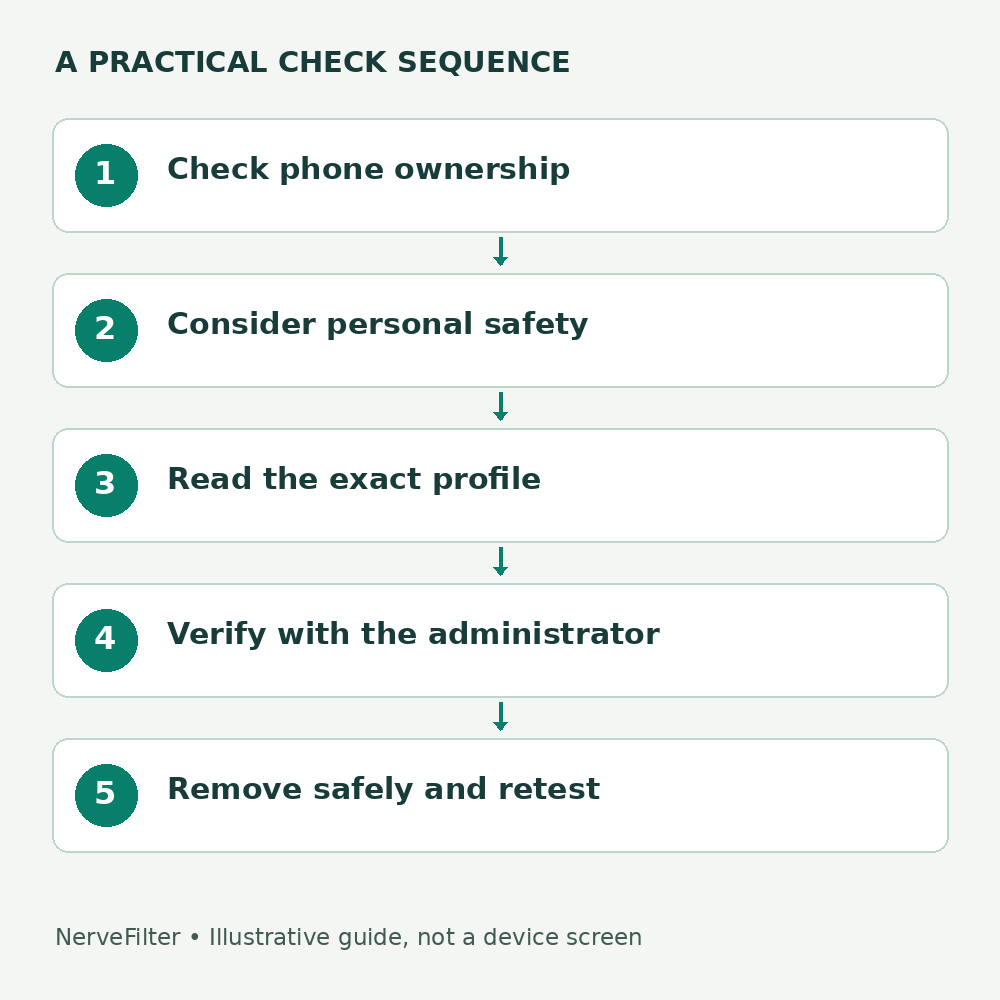
If the phone belongs to your employer or school, contact its administrator through a known channel before deleting a profile. Ask for the expected management name and the purpose of the entry. A claim made by the person who sent an unexpected installation link is not independent confirmation.
If you suspect a controlling partner or another person may monitor your device, think about your physical safety before changing settings. Use a safer device to seek trusted help if necessary. Do not assume that removal will remain unnoticed or that a technical cleanup alone solves a personal-safety problem.
Review the profile without following the original link
- Open Settings, then General, then VPN & Device Management.
- Look at the installed profiles and management entries. If no profiles appear, Apple says no device-management profiles are installed.
- Select the entry and read its name, organization and listed configuration. Record what you see privately before changing it.
- Compare it with a setup you knowingly completed. Ask the relevant administrator or vendor what should be present.
Menu wording can vary across iOS releases. A VPN entry and a management profile should not be treated as interchangeable just because they share a settings area. Review the specific item rather than judging the whole screen by its heading.
An example of a useful verification request
Suppose a personal phone shows a profile called “Work Access” after you left a job. A useful question to the former IT team is: “Is this your profile, what data or settings are tied to it, and what is your offboarding process?” The label alone cannot answer those questions. This is an illustrative scenario, not a profile we tested.
For a profile introduced by an unsolicited delivery or refund message, verify the supposed organization through its established contact route. Do not install another “verification” profile to confirm the first one. If you cannot identify a legitimate reason for the configuration, keep the phone out of sensitive use while arranging a safe removal and broader review.
Remove an unwanted profile deliberately
After checking ownership, safety and the consequences for associated data, select the unwanted profile in VPN & Device Management and use the available deletion/removal control. Follow the device prompts. Apple’s personal-safety guide recommends restarting afterward. If the control is unavailable or requires a management password you do not have, contact the legitimate administrator or Apple Support; do not try a bypass tool.
Return to the settings area after restart and confirm the unwanted entry is gone. Check the services affected by the removal. Preserve copies of important information before changing a configuration that may delete it, and involve workplace support when organizational data is involved.
What to investigate next
Review unfamiliar Apple Account devices and recovery information separately. Check people, apps and accounts that share your location. If you entered credentials on a suspicious page, secure those accounts from a trusted device; removing a profile does not invalidate a password somebody already knows.
A returning profile or unexpected management enrollment needs an explanation from the administrator or device provider. Do not repeatedly erase settings and declare success while the same access reappears. Conversely, a legitimate school configuration is not an incident merely because you did not recognize its technical name.
Reviewed October 3, 2026 against Apple documentation. This is a documentation-based guide. The original diagram illustrates decisions, not an iPhone screen.