An unfamiliar login alert is a reason to investigate, not a reason to panic and not proof that an intruder is already reading the account. Some alerts describe a blocked attempt. Others describe a successful sign-in, a new device, a password change, or a request that still needs your approval. The first useful question is not “Is the location wrong?” It is “What exact event does the provider say occurred?”
Responding calmly matters because criminals imitate security alerts. A rushed click can turn a genuine warning—or even a completely fabricated message—into a stolen password. Use the alert as a signal, then inspect the account through a route you choose yourself.
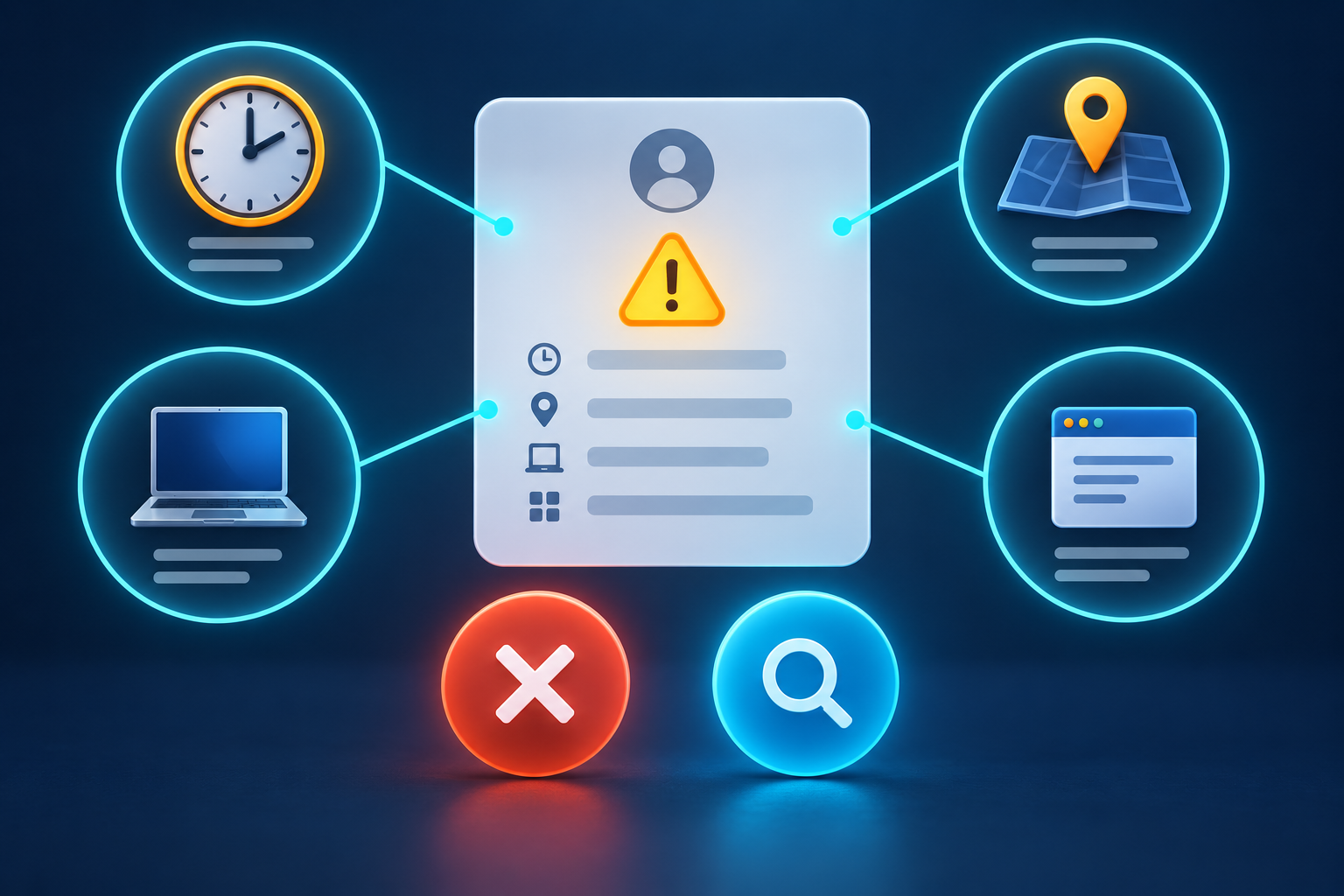
The five-minute triage
- Do not use the message link. Do not call a phone number in it, reply to the sender, download an attachment, or enter a code. Open the provider’s official app or type its known account address into a browser.
- Check whether the alert appears inside the account. Look for recent security activity, sign-in history, devices, or notifications. A message that has no matching account event may be phishing, although some providers do not mirror every alert in exactly the same place.
- Read the event status. Was access blocked, challenged, approved, or successful? Did the event change a password, recovery method, multi-factor setting, or connected app?
- Compare the time with your own activity. Consider every device and app you use, not only the browser in front of you.
- If it was not you, use the account’s own security control. Select the provider’s “not me,” “secure account,” or equivalent option from inside the official account page, then continue with the full review below.
If the provider’s app presents a live approval prompt for a sign-in you did not initiate, reject it. Do not approve merely to make repeated notifications stop.
First identify the type of event
Security notices use similar language for events with very different consequences.
- Attempt blocked: someone—or an automated system—tried credentials or triggered a login, but the provider says access was prevented. The attempt still matters, particularly if it suggests someone knows a current password.
- Verification required: a sign-in is waiting for a code, biometric check, passkey, or approval. Reject an unknown request and review the account. Never send the code to a person who contacts you.
- Successful sign-in: the account accepted the login. Treat an unrecognized successful event as possible account takeover, even if no data change is yet visible.
- New device or app: the provider saw a device, browser profile, mail client, or app it had not associated with the account before. It may be yours after an update or reinstall, but it needs verification.
- Security-setting change: a password, recovery address, phone number, passkey, authentication method, forwarding rule, or connected app changed. An unknown change is especially urgent because it can help an intruder keep access.
Why the location can be unfamiliar even when the login is yours
A location in a login record usually comes from an IP address. It is not GPS evidence and should not be read like a precise map pin. Mobile carriers may route traffic through another city. Corporate networks, privacy relays, satellite providers, and VPNs can make a login appear far from the user. An Internet provider may also reassign addresses whose registered location is outdated.
Look for combinations rather than letting the city decide the case. A strange city at the exact time you signed in through a VPN on your normal browser is less concerning than a successful login at 3:00 a.m. from a new operating system followed by a recovery-email change.
Time zones can also mislead. Check whether the history uses your local time, the provider’s time zone, or Coordinated Universal Time. Compare the timestamp with password-manager records, sent messages, calendar activity, and your device history if you need to reconstruct what happened.
How to interpret the device and browser details
Device labels are useful but imperfect. A browser update, private window, cleared cookies, new user profile, app reinstall, or factory reset can make your own device look new. Some services report the operating system or browser engine instead of a friendly device name. An email client may appear as the client’s server rather than the phone in your hand.
Ask these questions:
- Do the device type and operating system match anything you own or recently used?
- Did you install a mail, calendar, backup, automation, or social-media app that could sign in in the background?
- Were you using a work computer, hotel television, shared tablet, game console, or borrowed device?
- Did you recently clear browser data, reinstall the app, restore a backup, or change networks?
- Does the provider show the event as a browser login, an application authorization, or an older mail protocol?
A familiar device label is not conclusive either. Names can be generic, and an attacker may use the same browser family. Give more weight to the complete event and the actions that followed it.
Four common explanations that are not account takeover
Your own app refreshed its session
Email, calendar, storage, and automation tools can reconnect after an update or token expiration. Confirm that the app is installed, the timing fits, and the access shown is appropriate.
A VPN or network changed the location
Turn off guessing and compare the public network you were using at the time. Do not publish the alert’s IP address while asking for help; it can reveal information and rarely lets strangers prove who signed in.
A family or shared device remained signed in
A smart television, tablet, browser profile, or old phone may continue using the account. If shared access was not intentional, sign it out and give each person a separate account where possible.
The alert itself is fake
A scam message can invent an alarming location and include a button labeled “Secure your account.” Open the account independently. If you need a fuller message check, use the 12-point scam-message checklist without interacting with the alert.
When the activity was yours
Mark it as recognized if the provider asks and you are confident the details fit. Do not weaken security controls merely because a legitimate login triggered a warning. If alerts happen repeatedly through an app you trust, update the app, check that it uses the provider’s supported sign-in method, and review its authorized access.
Use the event to improve your inventory. Rename devices where the platform allows it, sign out equipment you no longer own, and remove old app connections. Clear labels make the next alert easier to judge.
When an unknown attempt was blocked
A blocked attempt is better than a successful one, but it can reveal pressure against the account. If the alert or official history says the correct password was used, change that password from a trusted device and change it anywhere else it was reused. A unique password limits the damage from a breach at another service.
Review multi-factor methods and recovery information. Remove phone numbers, email addresses, passkeys, app passwords, or authentication devices you do not recognize. Check the full device list and connected applications. Continue monitoring for another attempt; repeated approval prompts can be an attempt to exhaust you into accepting one.
When an unknown sign-in succeeded
Move beyond a password-only response. A password change may not end every session, remove a malicious connected app, or undo a new recovery method.
- Use a trusted device and the provider’s official recovery or security page.
- Change the password to a new, unique one if a password is still used.
- Use the provider’s option to sign out other sessions or remove unknown devices.
- Review multi-factor methods, passkeys, recovery email addresses, recovery phone numbers, and backup codes.
- Inspect linked apps and delegated access. Revoke anything unknown or no longer necessary.
- For email accounts, check forwarding, filters, rules, delegates, sent mail, deleted mail, and automatic replies.
- Check important accounts that use this inbox for password recovery, especially financial, cloud-storage, shopping, and social accounts.
- Preserve evidence of changes and contact the provider or organization if control cannot be restored.
If the affected account belongs to an employer or school, notify its security or support team promptly. It may have sign-in logs and session controls that are not available to you, and the incident may affect other people or organizational data.
What if you received only a verification code?
An unsolicited code can mean someone entered your address or number by mistake, knows the password and reached the second factor, or is trying a password-reset flow. Never read the code to a caller or type it into a site reached through their link. Go to the official account and inspect security activity.
If the account uses the same password elsewhere or shows an unknown attempt, replace the password. If codes keep arriving, confirm that the recovery phone and email still belong to you and contact the provider through its official support route.
Preserve useful evidence without exposing it
Take screenshots of the event details before they rotate out of the history. Record the provider, account, event status, displayed device, location, time zone, and actions you took. Keep support case numbers and copies of security-change emails.
Redact email addresses, phone numbers, IP addresses, device identifiers, recovery codes, QR codes, and session links before sharing screenshots publicly. An online helper usually needs the wording and sequence, not your secrets.
Signals that raise the priority
Treat the alert as urgent when it is combined with any of these signs:
- a password or recovery method changed without your action;
- messages were sent, files opened, or purchases made without you;
- a new forwarding rule, app password, passkey, or connected app appeared;
- your phone suddenly lost service during the event;
- you cannot sign in with a password that worked recently;
- contacts received messages you did not send;
- the activity recurs after a simple password change.
These combinations point to persistence or broader compromise and justify a full recovery review, not repeated dismissal of alerts.
What the alert cannot prove
A security alert is based on the provider’s detection and available logs. It may be delayed, incomplete, or summarized. The displayed location does not identify a person, and the absence of an alert does not prove that no unauthorized access occurred. Some attackers use existing sessions or approved applications that do not look like a fresh login.
Use the alert as one piece of evidence. Account changes, device lists, session history, email rules, connected apps, and your own activity together create a stronger conclusion.
A calm rule for the next alert
Leave the message, open the account independently, determine whether the event was blocked or successful, compare the full context, and secure every persistence point if it was not you. That sequence is fast enough for a real incident and careful enough to avoid a phishing trap.