
Most people are signed in on more devices than they can name from memory. A current phone, an old phone in a drawer, a work browser, a television, a tablet used by a child, a hotel computer, and several background apps can all leave account traces. Reviewing those connections is one of the fastest ways to find forgotten or unauthorized access—but only if you understand what each provider’s list represents.
A “device” page is not always a complete list of active sessions. A “recent activity” page may include devices that are no longer signed in. Connected apps can continue accessing data without appearing as a normal phone or computer. Use the method below as an account audit, not as a single-screen ritual.
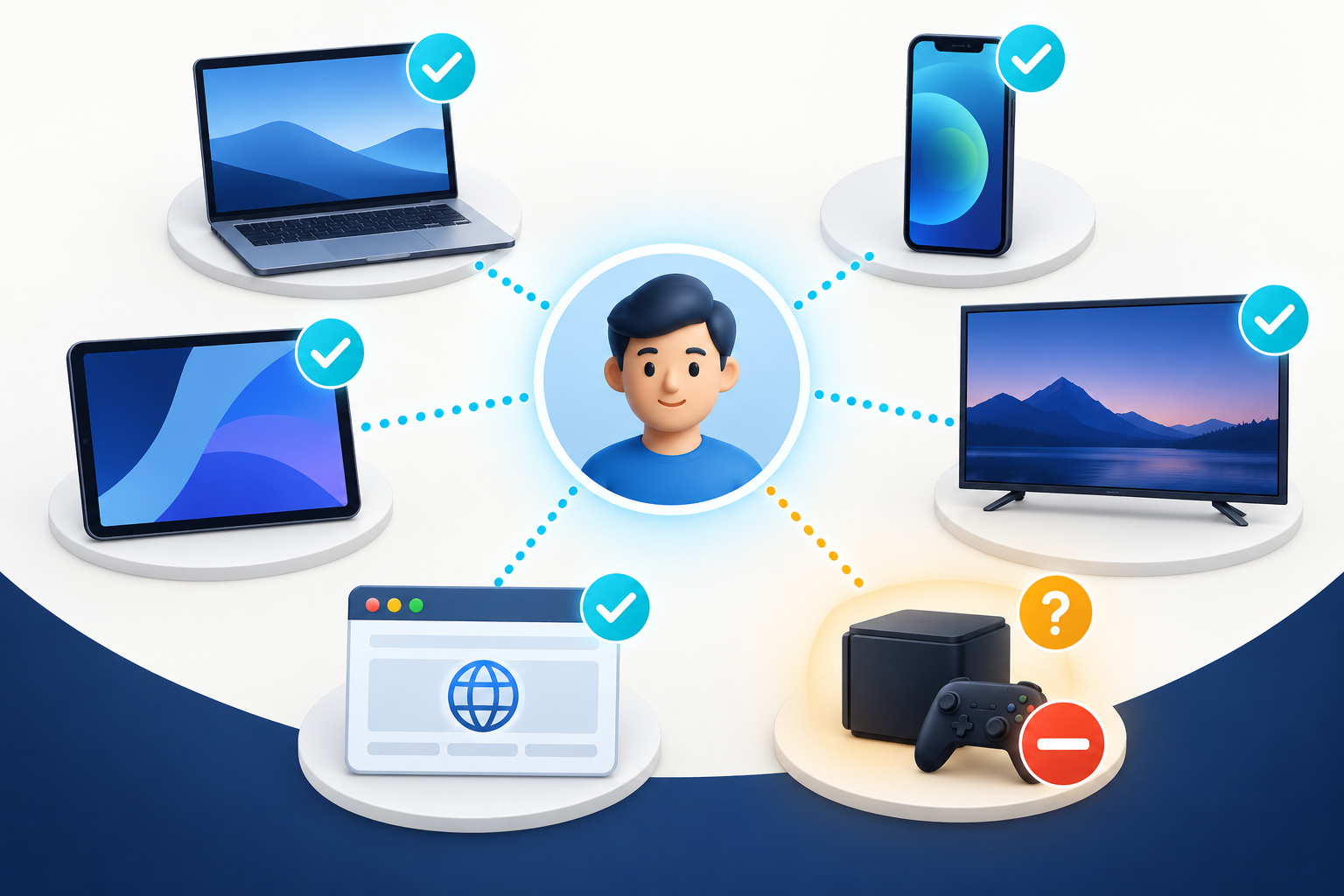
Start with the accounts that can reset other accounts
Review in this order when time is limited:
- primary and recovery email accounts;
- password manager;
- Apple, Google, or Microsoft identity account used across devices;
- mobile-carrier account;
- banking and payment services;
- work or school identity;
- messaging and social accounts;
- shopping, entertainment, smart-home, and other lower-impact services.
An intruder in the primary inbox may be able to reset several accounts, while an old streaming session usually has narrower consequences. Risk, not convenience, should set the sequence.
Know the four lists you may need
1. Device list
This usually shows phones, tablets, computers, watches, televisions, or other hardware associated with the account. It can include recent devices that are no longer actively connected and may omit a browser session that the provider does not identify as a separate device.
2. Session or sign-in list
This records browser, app, or protocol activity. One physical laptop can create several entries through different browsers and profiles. A server-based email client or VPN can make the location and device label unfamiliar.
3. Connected-app list
An authorized application may read or manage account data using a token. It may continue working after you close its website and can be easy to miss if you check only hardware.
4. Recovery and authentication list
Trusted phone numbers, recovery addresses, passkeys, security keys, authenticator registrations, backup codes, and app passwords can preserve access. An account review is incomplete if an unknown recovery method remains.
Prepare a device inventory before opening settings
Write down the devices you currently own and those you used recently. Include browsers and profiles, not just hardware. Note old devices you sold, returned, traded, recycled, lost, or gave away. Include smart televisions, game consoles, speakers, watches, e-readers, and shared family equipment where the account may still be present.
This list gives unfamiliar entries context. “Windows” could be your work laptop, home desktop, or an attacker. If you name your devices clearly in their operating systems, future account pages are easier to interpret.
Check the account from a device you already trust
Do not perform the audit on a public computer or a phone whose security is uncertain. A shared browser may save a new session while you are trying to remove old ones. Use a current device you control, update it first, and confirm that you are on the provider’s official account domain.
If you must use a borrowed device during an emergency, use a private window, decline password saving, sign out when finished, close every private window, and change temporary recovery details from your own device later. Private browsing reduces local history but does not make an unsafe computer trustworthy.
Separate household sharing from shared credentials
A family television may legitimately use one streaming profile, but a shared primary email or cloud identity makes security changes difficult to attribute. Where a service supports family groups, profiles, delegated mailboxes, or household sharing, use those controls instead of giving everyone the same password.
During the audit, ask who physically controls each device and whether that person still needs access. A device can be familiar yet no longer appropriate: an adult child’s old tablet, a former partner’s television, or a contractor’s browser may all have once been authorized. Ending outdated access is routine maintenance, not an accusation.
Google: review devices and recent activity
Open your Google Account independently and go to Security & sign-in. Under Your devices, choose the option to manage all devices. Google’s help page says the list includes devices where you are currently signed in or have been signed in within recent weeks; multiple sessions can appear for one device.
Select each entry and review the device type, last activity, location information, and sessions shown. Sign out a device or session you no longer use or cannot identify. Google may keep a signed-out entry visible for a period as recent history, so do not assume that continued display means the sign-out failed.
Then review Recent security activity and the third-party connections page. A service with Google Account access is not the same as a browser signed into Gmail. The Google connected-app guide explains how to revoke each connection type.
Apple: distinguish signed-in devices from purchase associations
On an iPhone or iPad, open Settings and select your name to see devices associated with the Apple Account. On a Mac, use System Settings and your name. You can also sign in at account.apple.com and select Devices. Apple’s device details can include the model, serial number, software version, and whether it is trusted to receive verification codes.
Remove equipment you no longer use or do not recognize. Apple says a removed device loses access to iCloud, Find My, and other Apple services and can no longer display two-factor verification codes. It can reappear if it is still signed in and reconnects, so change the password and secure the account when the device is genuinely unknown.
Do not confuse this list with the list of devices associated with purchases in Apple Music or Apple TV. Apple documents that purchase associations are a separate system. Also use special care with a lost or stolen device: follow Lost Mode and theft instructions before removing it, because removing an Apple device can affect Find My and Activation Lock.
Microsoft: devices, activity, and global sign-out
Use the Microsoft account dashboard to review recent activity and registered devices. The device page may help with services, downloads, and hardware management, while the recent-activity page shows sign-in events. Treat them as complementary views.
Microsoft also provides a Sign out everywhere control in Advanced security options. Microsoft states that browser and app sign-outs can take up to 24 hours and excludes Xbox consoles from that global action. Use the provider’s current instructions rather than assuming that clicking the control produces instant removal from every product.
Work or school Microsoft accounts may be controlled through an organization’s My Account portal. The organization can have additional device, session, and conditional-access records. Contact its support team when you see an unknown successful sign-in or cannot disable a device.
How to identify an entry without guessing
Compare several attributes:
- device type and operating system;
- browser or app name;
- last activity time and time zone;
- approximate location and network;
- device model or serial number where displayed;
- whether the entry receives verification codes;
- actions that occurred after the session began.
Location alone is weak evidence. Mobile networks, VPNs, corporate gateways, privacy relays, and Internet-provider routing can place your activity in another city. A familiar location is also not proof of safety. Look for a combination that matches your real use.
If a label is ambiguous, sign out that session and sign in again on the device you control. Record how the provider labels it. Do not approve a prompt on an unfamiliar device as an experiment.
When to keep, sign out, or investigate
- Keep: you own the device, recognize the session, still use it, and its security is acceptable.
- Sign out: the device is old, shared, borrowed, sold, repaired, lost, rarely used, or no longer needs access.
- Investigate: the session is successful and unknown, the timing conflicts with your activity, security settings changed, or the entry returns after removal.
Routine cleanup does not require changing the password every time you retire an old television. An unknown successful login does. Use the unfamiliar-login alert guide to interpret the event before deciding how far recovery should go.
If you find an unknown device
- Capture the displayed details and time.
- Use the provider’s control to sign it out or remove it.
- Change the account password from a trusted device if access was unauthorized.
- End other sessions when the provider offers that option.
- Review recovery details, multi-factor methods, passkeys, app passwords, and backup codes.
- Remove unknown connected applications.
- For email, inspect forwarding, rules, delegates, sent mail, and deleted items.
- Review important accounts that depend on the affected identity for recovery.
Do not stop at “remove device” if the attacker may know the password or control a recovery channel. The unknown entry is evidence; the account’s access paths are the problem to repair.
Why an entry may return
A device can reappear because it remained signed in locally, an app refreshed its authorization, a restored backup recreated the account, or someone still knows the credentials. Some pages also keep recently signed-out activity visible. Read the status and timestamp rather than relying on the presence of a tile.
If new activity occurs after removal, check whether the password changed successfully, whether every session was revoked, whether a connected app or app password remains, and whether the primary email or mobile number is compromised. Repeated return is a persistence problem, not a reason to press the same remove button indefinitely.
Do not remove a device carelessly when it is lost
“Remove from account” can mean more than sign-out. On Apple platforms, removing a lost device may interfere with Find My or Activation Lock. On Android, remote find, lock, and erase functions depend on the account relationship and device state. Follow the platform’s lost-device process before unlinking hardware.
For equipment you sold or gave away, the ideal process is to sign out, erase it according to the manufacturer’s instructions, and remove it from the account while it is still under your control. If that did not happen, secure the account and consult the provider’s transfer guidance.
Create a review routine that remains useful
Review high-value account devices after travel, a repair, a lost phone, a password incident, a job change, or use of a shared computer. A periodic review every few months can catch forgotten equipment, but it is not a substitute for responding to alerts.
Maintain a small private inventory with device names, owners, and disposal dates. Do not store passwords in that list. When a device leaves your control, record the sign-out and erase steps. A clear inventory turns a confusing dashboard into a quick comparison.
The complete check
For each important account, inspect devices, sessions, recent activity, connected apps, and recovery methods. Sign out what is obsolete, investigate what is unexplained, and protect the identity accounts first. No single page proves that access is clean, but the combined review exposes far more than a password change by itself.