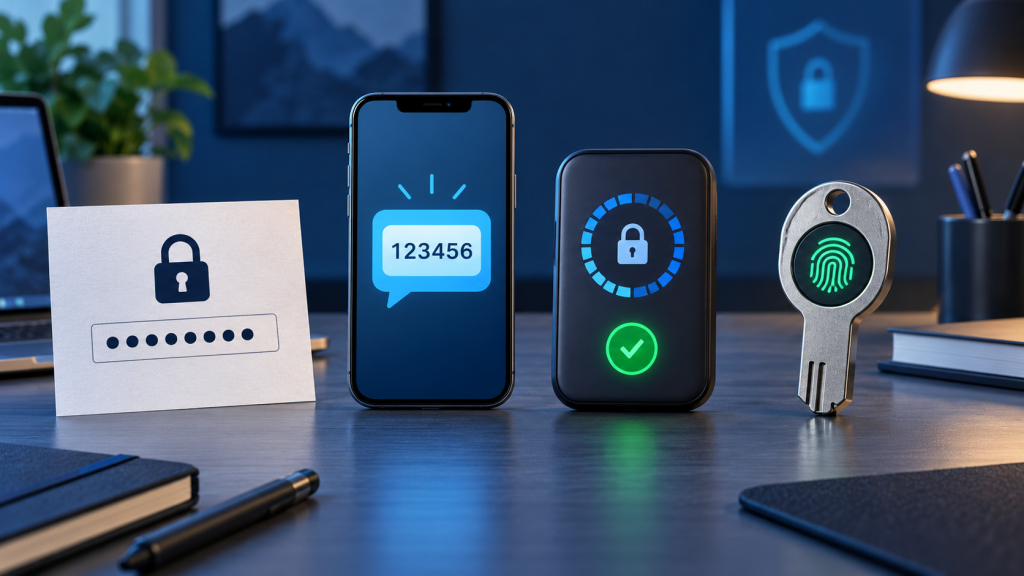
Passwords, texted codes, authenticator apps, and passkeys are often presented as choices on the same security menu, but they do not solve the same problem. A password proves that someone knows a secret. A text message or authenticator code adds a short-lived proof. A passkey uses cryptography tied to the real service and is unlocked on a device. Each method has different failure points, recovery demands, and protection against phishing.
The best available option depends on what the service supports and how important the account is. The practical goal is not to wait for a perfect system. It is to use a unique credential now, add the strongest second factor available, move high-value accounts toward phishing-resistant sign-in, and prepare recovery before a phone is lost.
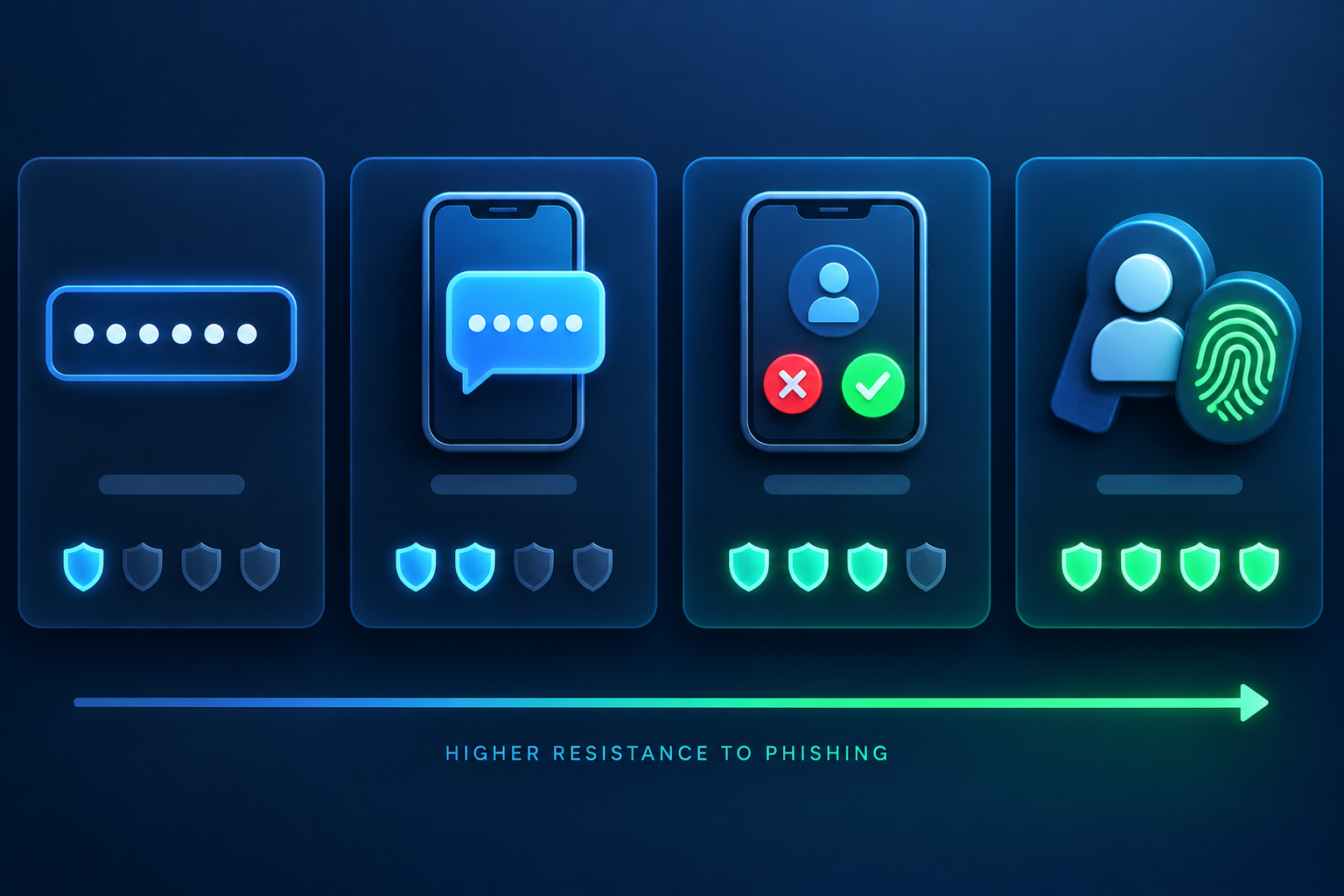
A quick comparison
- Password: widely supported and easy to back up in a password manager, but vulnerable to reuse, guessing, data breaches, keylogging, and phishing.
- SMS code: adds a second channel and is much better than a password alone in many situations, but the code can be phished and the phone number can be attacked or lost.
- Authenticator-app code: works without mobile service and avoids many phone-network risks, but the code can still be copied into a fake site in real time.
- Passkey: uses public-key cryptography and is designed to resist phishing because the credential is bound to the service. Recovery and device availability still require planning.
These are general properties. A provider’s implementation, fallback methods, account recovery, device security, and organizational policy can make the real result stronger or weaker.
What “factor” means
Authentication factors are commonly described as something you know, something you have, and something you are. A password is something you know. A phone, authenticator, or security key can be something you have. A fingerprint or face scan can unlock a device-held credential, but the biometric usually stays on the device rather than being sent to every website.
Two-step verification is useful when the steps rely on different factors. Two passwords are not strong multi-factor authentication. A password followed by a code from a controlled device creates an additional barrier. A passkey can combine possession of the authenticator with a local unlock such as a device PIN or biometric.
Passwords: necessary at many services, dangerous when reused
A strong password is long, unique to one account, and stored securely. Uniqueness is often more important than decorative complexity. If one website is breached, a unique password prevents an attacker from using the same credential against email, banking, and social accounts.
A password manager can generate and store unique passwords and can reduce phishing mistakes because it normally offers a credential only on the saved domain. That safeguard is helpful, not infallible: a user can still copy a password into the wrong page, malware can affect the device, and account recovery can bypass the normal login.
NIST’s current digital-identity guidance does not treat passwords as phishing-resistant. A fake site can simply collect the secret and relay it to the real site. Stronger composition rules cannot solve that property.
Good password practice
- Use a unique password for every important account.
- Generate and store it in a reputable password manager.
- Protect the password manager with a strong master password and multi-factor authentication.
- Replace a password when it is exposed, reused, or reported in a breach; do not rotate it on a meaningless schedule if that encourages predictable changes.
- Never give a password to a caller, support agent, or outside app.
SMS codes: accessible protection with network dependencies
With SMS verification, the service sends a short-lived code to the phone number on the account. It can stop many automated attacks that have only the password, which makes it substantially better than password-only sign-in when no stronger method is available.
Its limits matter. A fake site can ask for the code and relay it immediately. A criminal may persuade a mobile carrier to move a number to another SIM, compromise the carrier account, abuse message forwarding, or exploit a lost unlocked phone. Codes can be delayed when traveling or unavailable without service. Phone numbers also change and are sometimes reassigned.
Protect the carrier account with a PIN or port-out lock where available. Keep the recovery phone current and remove old numbers. Never read a code to someone who called you. A legitimate code message normally tells you not to share it.
Authenticator apps: independent of SMS, still phishable
Time-based authenticator apps generate rotating one-time passwords from a secret established during enrollment. They generally work offline and do not require the phone number or mobile network. That removes several SMS failure points.
The six-digit code itself is still a secret for its short lifetime. A convincing phishing page can collect it and use it against the real service before it expires. NIST’s guidance explicitly notes that one-time-password authentication is not phishing-resistant.
Setup and migration deserve attention. Some authenticator apps keep codes only on one device; others can synchronize them through an account or support an encrypted backup or export. Understand which model your app uses before replacing or resetting a phone. Protect any export QR code or seed as carefully as a password because a copy can generate future codes.
Safe enrollment and recovery
- Scan the setup code only while signed into the real service through a route you opened yourself.
- Store provider recovery codes in a secure place separate from the everyday phone.
- Add a second supported method before replacing the old phone.
- After migration, test the new authenticator and remove the old registration if the provider created a separate entry.
- Do not screenshot or casually cloud-sync enrollment QR codes unless the provider specifically designs a protected backup process.
Push approval is another method, not an authenticator code
Many authenticator apps also display push prompts. A simple Approve or Deny prompt can be abused through repeated requests, sometimes called push fatigue. Number matching improves the decision by requiring the user to enter or compare a number shown during the sign-in, but no one should approve a request they did not initiate.
CISA recommends phishing-resistant MFA as the target and describes number matching or app-based methods as useful options when that target is not yet available.
Passkeys: cryptographic sign-in bound to the service
A passkey is a credential based on a public-private key pair. The service stores the public key. The private key remains in an authenticator such as a phone, computer, password manager, or hardware security key. During sign-in, the authenticator proves possession without sending a reusable password to the service.
The passkey is associated with the genuine website or application. A lookalike phishing site cannot ask the authenticator to sign a challenge for a different domain and then reuse that result. NIST, CISA, and the FIDO Alliance therefore describe properly implemented FIDO-based authentication as phishing-resistant.
The face scan, fingerprint, or device PIN commonly shown during passkey sign-in unlocks the credential locally. It is not the passkey itself, and the website does not receive a copy of your fingerprint.
Synced and device-bound passkeys
Some passkeys synchronize through a platform or password manager so they are available on several of your devices. Others remain on a particular hardware security key or device. Synced passkeys can improve recovery and convenience; device-bound credentials can suit higher-assurance or managed environments. The right model depends on the account, platform, and organization.
Before creating a passkey, check where it will be stored, how that store is protected, and how you will sign in if all enrolled devices are unavailable. Give each passkey a useful name where the service permits it.
Phishing resistance can be weakened by fallback
An account may offer a passkey at the main login but still allow a password and SMS code through “Try another way.” An attacker will target the weakest route that remains. Strong daily sign-in is valuable, but complete protection also depends on recovery, support procedures, legacy app passwords, old devices, and connected applications.
After enabling a passkey, review which fallback methods the service lets you remove. Do not remove every recovery route without a tested alternative. The goal is deliberate recovery, not accidental lockout.
Which method should you choose?
If the service supports only a password
Use a unique generated password in a password manager. Monitor security alerts and avoid entering it through message links.
If it offers SMS as the only second factor
Enable it. Protect the carrier account and never share codes. SMS is not the strongest method, but disabling it and returning to password-only access is usually a step backward.
If it offers an authenticator app
Prefer it over SMS when you can maintain recovery safely. Store backup codes and plan phone migration.
If it offers passkeys or hardware security keys
Use them for important accounts, especially email, password managers, cloud identities, financial services, and administrative access. Enroll more than one safe authenticator when supported so one lost device does not lock you out.
If it is a work or school account
Follow organizational policy. Administrators may require a particular authenticator, manage device compliance, or provide recovery. Do not add personal recovery methods that policy forbids.
Build a recovery plan before changing methods
For each high-value account, record which sign-in methods are enrolled, where backup codes are stored, and which recovery email or phone is used. Do not store this inventory together with all credentials in an unprotected note.
Keep a second safe method where possible: an additional passkey on another device or security key, a secured authenticator backup, or provider-generated recovery codes. Test recovery instructions without consuming or exposing the only code. Remove authenticators tied to sold, lost, or retired devices.
Review the signed-in device list after major changes. The device and session audit explains why changing an authenticator does not automatically end every active session.
Common misunderstandings
- “Any MFA stops phishing.” SMS and one-time app codes can be relayed through a fake site. They still add valuable protection, but they are not phishing-resistant.
- “A passkey sends my fingerprint to the website.” The local biometric or PIN unlocks the authenticator; the service verifies a cryptographic response.
- “Changing the password logs out every device.” Session behavior differs by provider. Use explicit session and device controls.
- “The strongest login makes recovery irrelevant.” Attackers can target weak recovery methods and support processes.
- “One security key is enough.” A lost or damaged only key can create a recovery problem. Add a safe backup where supported.
A practical upgrade path
Begin with unique passwords. Add multi-factor authentication instead of postponing protection because the ideal option is unavailable. Move important accounts from SMS to an authenticator app when practical, and adopt passkeys or hardware security keys where supported. At every step, review fallback and recovery.
Authentication is a chain. Its strength comes from the normal login, the device holding the credential, the recovery route, and the sessions already active. Improving only one link helps, but understanding the entire chain prevents a false sense of completion.
Revisit this setup after replacing a phone, changing a recovery address, or learning that a provider has changed its available methods.