
You changed the password, reopened the security page, and the unfamiliar device is still there. That can mean the account remains exposed—but it can also mean the page is showing recent history, a registered device, an unfinished sign-out, or a product association rather than a live session. The label “device” hides several different relationships.
Do not keep changing the password without reading the entry. First determine whether the device is active now, signed out but retained in history, authorized through an app, trusted for account recovery, or associated with a separate service such as purchases or device finding.
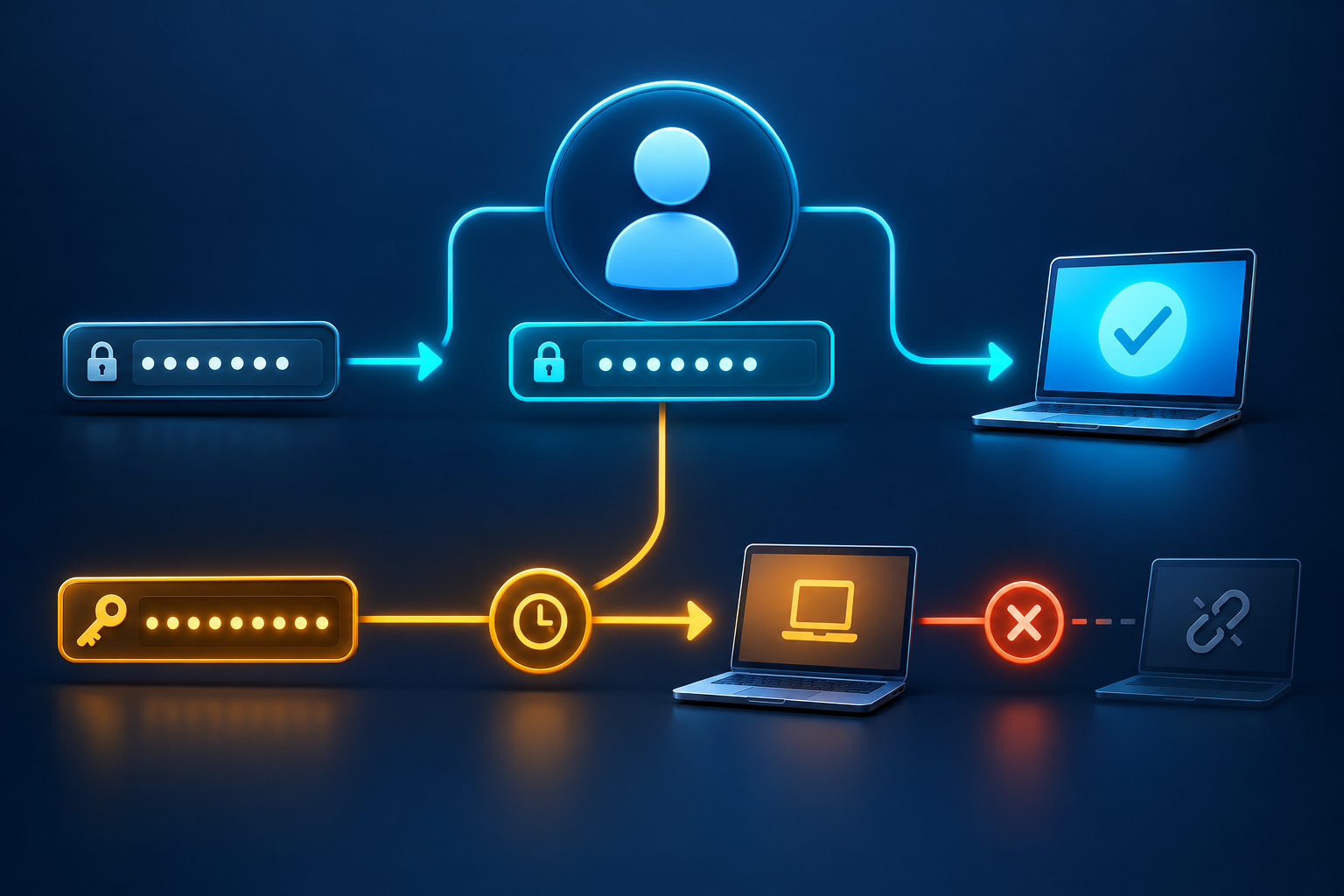
Begin with the status, timestamp, and action
Open the provider’s official account-security page from a trusted device. Select the unfamiliar entry and record:
- whether it says signed in, signed out, active, trusted, registered, or recently used;
- the last activity time and time zone;
- the device type, operating system, browser, or app;
- the approximate location and IP information where shown;
- whether the page offers Sign out, Remove, Disable, or Secure account;
- whether fresh activity occurred after your password change.
A tile that remains visible with “signed out” and an old timestamp is different from an entry that shows a new successful sign-in after recovery.
Reason 1: the page keeps recent history
Security pages often retain devices and sign-in events so you can investigate them. Removing access does not necessarily erase the historical record immediately. Google documents that its device view includes current and recent access. Microsoft’s Recent activity page covers a recent period even after the individual session has ended.
History is useful because an attacker should not be able to make evidence disappear by signing out. Check the status and last activity instead of expecting the row to vanish.
Reason 2: sign-out is not instantaneous
A global sign-out can take time to reach browsers, apps, and devices. Microsoft states that its Sign out everywhere action may take up to 24 hours and excludes Xbox consoles. Other providers have their own timing and product exceptions.
Record when you started the sign-out and check again after the provider’s stated period. Fresh activity during the waiting period still matters. Do not interpret a delay as permission to ignore security changes, but do not repeat destructive recovery steps every few minutes.
Reason 3: a registered device is not the same as a session
An account may register hardware for warranties, store downloads, purchases, family services, management, or device recovery. Removing a browser session may leave those associations. Microsoft’s registered-device pages and Apple’s purchase-associated device list are examples of controls that serve different purposes from sign-in history.
Use the action that matches the relationship. Sign out a session to end account use. Remove old registered hardware when you no longer own it. Unlink purchase associations through the product’s documented process. Do not assume one button affects every list.
Reason 4: device-finding and theft protection behave differently
Apple Find My, Activation Lock, and the Apple Account device list have connected but distinct effects. Apple documents that a device can reappear when it comes online if it remains signed in or still has the relevant relationship. Removing Activation Lock can make hardware usable by another person, which is appropriate before a legitimate sale but dangerous for a stolen device.
For a stolen Apple device, mark it lost and keep it in Find My to preserve Activation Lock. Apple’s current theft instructions distinguish that from removing the stolen device from the Apple Account device list, which can be done without removing it from Find My. Read the exact control before acting. For Android, use Google Find Hub and follow its device-specific guidance before changes that could affect finding.
Reason 5: the password did not revoke every session
A signed-in service often uses a session token after the password was entered. Providers decide whether a password change invalidates all tokens, selected tokens, or only future password logins. Some allow trusted devices to continue; others force a new sign-in.
Use the explicit session-revocation or Sign out everywhere control. If the device is unknown, select the provider’s “not me” or secure-account workflow as well. A password change proves you replaced a credential; it does not prove every authorization ended.
Reason 6: a connected app is accessing the account
A mail client, backup service, automation, social tool, or malicious app can use an authorization token. It may not appear as an ordinary phone or browser, and removing a device may not revoke it.
Review connected applications, account links, delegated access, and app passwords. Remove anything unknown or unnecessary. For a Google account, use the connected-app cleanup guide to distinguish Google sign-in, data access, and account linking.
Reason 7: the device signed in again
If the entry shows activity after the password change, someone or something may have reauthenticated. Possible routes include:
- the new password was entered on an unsafe device;
- a recovery email or phone remains compromised;
- an unknown passkey, security key, or authenticator remains enrolled;
- the device itself is trusted and still holds a valid credential;
- the password was reused and exposed again;
- a browser extension or remote-access tool observed the recovery;
- an app password or delegated account remains active.
Fresh activity changes the response from “wait for the list to update” to “find the persistence path.”
Reason 8: you changed the wrong account
People often use similar addresses across Google, Apple, Microsoft, work, and personal accounts. A device alert can refer to a secondary address or a social account that uses the primary inbox for recovery. Confirm the exact account identifier and provider at the top of the security page.
Also distinguish a local computer account from an online cloud account. Changing a Windows, Mac, or phone unlock code is not necessarily the same as changing the Microsoft, Apple, or Google Account password.
A complete removal sequence
- Use a trusted device and open the provider directly.
- Capture the unfamiliar entry and latest activity.
- Mark the activity as not yours if the provider offers that option.
- Change the password to a unique credential if it was exposed or unauthorized access succeeded.
- Use Sign out everywhere or revoke the specific session.
- Review recovery phone numbers and email addresses.
- Remove unknown passkeys, security keys, authenticator methods, and app passwords.
- Revoke unknown connected applications and delegated access.
- For email, inspect forwarding, filters, rules, delegates, sent mail, and deleted items.
- Scan or rebuild a device if there is evidence of malware or remote control.
- Check again after the provider’s stated sign-out period and watch for fresh activity.
The hacked-email playbook expands this sequence for an inbox that controls other accounts.
Google: why a signed-out device can remain visible
Google’s device page includes devices and sessions used recently. A signed-out label means the session is no longer authorized even if the row remains in the recent list. Select the entry to confirm the status and last activity.
One physical device can create multiple sessions through browsers, apps, and private windows. Sign out each unknown session. If several belong to the same device and you are uncertain, Google advises signing out all sessions with that device name.
Microsoft: distinguish recent activity from global sign-out
Recent activity is a log. It is expected to retain events. The global sign-out in Advanced security options is the action intended to end sessions across many Microsoft account uses, with documented timing and exceptions.
Registered PCs, mobile devices, Store associations, and Xbox use can have separate controls. Review the provider’s device-management page rather than assuming the activity record is removable.
Apple: distinguish account devices, Find My, and purchases
The Apple Account device list shows devices signed in with the account and indicates trusted-device status. The purchase-associated device list is separate. Find My adds lost-device and Activation Lock behavior.
Remove a device you no longer own through the appropriate account page, but handle a stolen device through Lost Mode. If an unknown device reappears with fresh account activity, change the password and remove unknown trusted methods rather than repeatedly hiding the tile.
Use a controlled sign-out test
When the label might belong to one of your devices, make one controlled change instead of changing several security settings at once. Note the entry’s name and last activity. Sign it out from the account page. On the possible matching device, close the app or browser, reopen it, and check whether the service requests authentication.
If it asks you to sign in and the account page shows the old entry as signed out, the control worked. Sign back in through the official app and compare the new label. If the device continues to access new data without any authentication, inspect whether another account, offline cache, app token, or product-specific session is involved.
Do not run this test on a device that may be stolen, controlled by another person, or connected to a high-risk work account. Revoke first and let the administrator or provider investigate.
Preserve enough detail to spot a return
Before removal, record the device label, session identifier if shown, browser, operating system, location, and last activity. After each recovery step, record the time. This creates a boundary: events before the boundary may be history; events after it may show reauthentication.
Do not share raw IP addresses, recovery information, or session links in a public forum. A support professional usually needs the provider, status, time, and sequence. Keep the complete evidence in a protected record for the provider, employer, bank, or law-enforcement report if needed.
When the device is probably your own
A browser update, reinstall, restored backup, private profile, VPN, mobile network, smart television, mail app, or renamed computer can create an unfamiliar label. Compare the time with your own activity and check the device’s current model and account settings.
If uncertainty remains, sign out the entry and sign back in on the known device. Observe how the provider labels the new session. Do not approve an unknown prompt as a test.
When to escalate
Contact the provider or organization when:
- fresh unknown activity continues after full recovery;
- you cannot remove a recovery method or trusted device;
- the account belongs to work or school;
- financial transactions or sensitive data are affected;
- the device has administrator or management access;
- you suspect malware, remote control, or a stolen phone number.
For work accounts, administrators can often revoke tokens and inspect logs that are unavailable to the user.
Do not confuse a clean list with a secure account
An attacker does not need a visible device tile if a connected application, forwarding rule, session cookie, or compromised recovery account remains. Conversely, a historical tile does not mean active access.
Security comes from closing the access routes and checking new activity. The full device and session audit provides the wider inventory. Use the unfamiliar entry as evidence, not as the entire diagnosis.
Accuracy update: October 3, 2026 — clarified the Apple Account and Find My distinction.