You arrive at a page expecting a document or download. A familiar-looking verification box appears, then asks you to open Run, Terminal or PowerShell and paste something. The page calls this a security check. Treat that request as the warning: a website is trying to turn you into the person who starts software on your computer.
This deception is commonly called ClickFix. Microsoft documents campaigns that disguise command execution as CAPTCHA verification, an error fix or another ordinary task. Windows is not the only platform targeted. A page’s branding, HTTPS padlock or place on a genuine website does not make its instructions safe.
The boundary that matters
A normal web verification stays in the browser. When the page asks you to move into a system command tool, the claimed task and requested capability no longer match. You do not need to inspect an encoded script or prove that it is malicious before refusing. Close the page and reach the document or service through an independent route.
Some legitimate technical support does involve commands. That is a separate situation: you intentionally sought support from a verified source and understand the proposed action. An unexpected verification overlay is not a support session, even if it uses the word “repair.”
Three interaction stages need different responses
| What you did | What to do next |
|---|---|
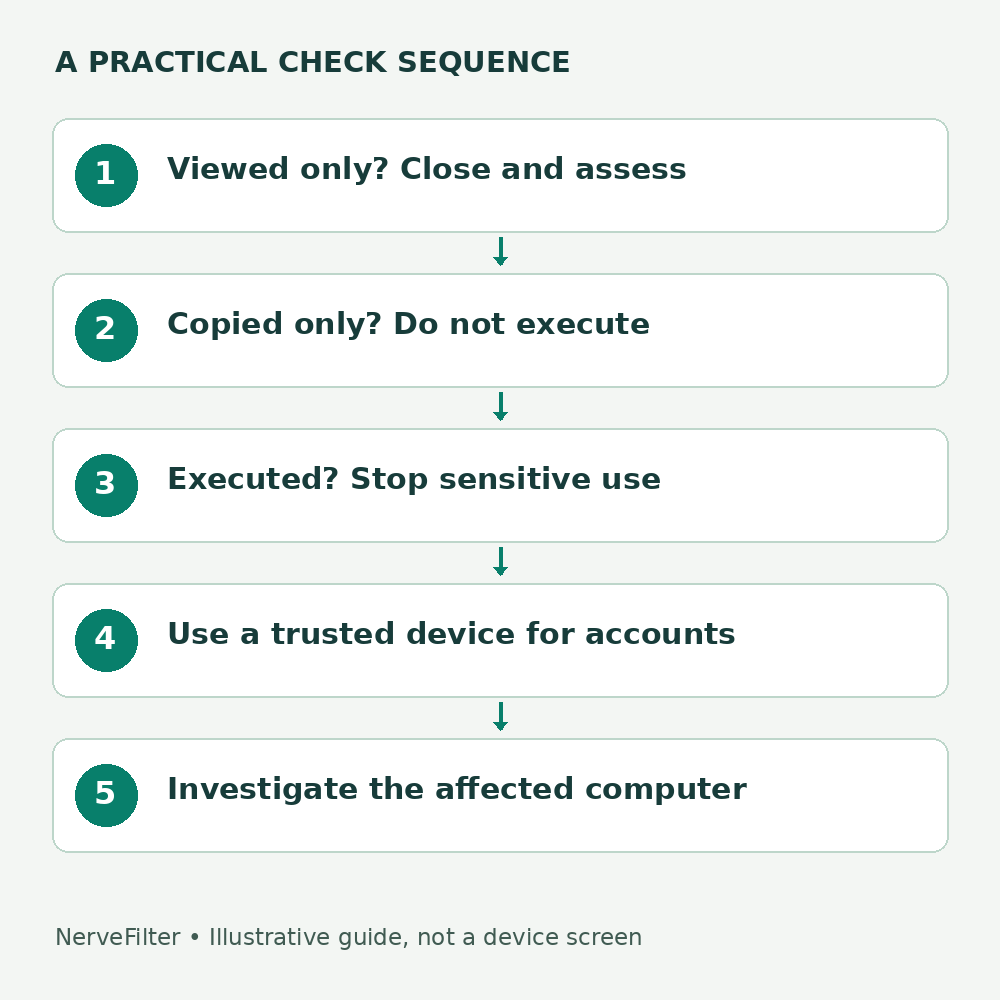
| Only viewed the page | Close it. Record the URL if useful. Check whether anything downloaded or you supplied other information. |
| Copied or pasted text, without executing it | Close the command window without submitting. Replace the clipboard contents with harmless text so you do not paste the command later. |
| Submitted the command, or cannot tell | Treat the computer as potentially compromised. Stop sensitive use and begin device and account containment. |
Viewing a page is not the same evidence as executing its instructions. Equally, a window that vanished quickly is not reassurance after execution. Record what you actually remember rather than fitting your experience to the most frightening branch.
If the command ran
Disconnect the affected computer from the network if you can do so safely, and do not sign into email, banking or a password manager on it. For a work or school device, contact its security team immediately. Give the time, page URL and actions taken; let the team decide how to preserve evidence and investigate the machine.
Use a different trusted device for account checks. Prioritize the accounts that were open or whose credentials were stored on the affected computer. Follow each provider’s compromised-account instructions, including session revocation and recovery-method review. A password change on the suspect machine can expose the new password too.
For a personal Windows PC, Microsoft recommends current security intelligence and a full antivirus scan for unwanted software. Windows Security also offers Microsoft Defender Offline, which restarts into a recovery environment for scanning. Save work first and follow Microsoft’s current instructions rather than a “cleanup” command posted by a stranger.
A scan can help find and remove threats. It cannot reverse information already stolen or prove that every session token is safe. If detections recur, remote control is evident or the investigation cannot establish a trustworthy device state, seek competent technical help and discuss a clean reinstall. Preserve essential personal files carefully; avoid restoring unknown executables.
A useful incident note
For example, an honest note could read: “At 14:10 I opened a document link. A verification page asked me to use Terminal. I pasted text and pressed Enter. A window opened briefly. I disconnected Wi-Fi at 14:14.” This is an illustrative record, not a report of an incident we investigated. It gives support staff a sequence they can compare with device evidence.
Keep a private screenshot or the original message when available, but do not run the instruction again to capture it. Never publish active commands or private account information in a help forum. A URL and a description are usually enough for the first support contact.
Make the next encounter easier to refuse
Remember the requested action rather than the costume. A CAPTCHA asking for a system command, a document asking you to disable protection and a refund asking for remote control all need independent verification. Browser warnings and antivirus protections help, but they cannot make an instruction you choose to execute harmless.
If the interaction involved a password, payment or installed application as well, use the relevant branch in our after-click response guide. The command-execution branch deserves its own device investigation.
Reviewed October 3, 2026. The diagram is an original illustrative decision map; it contains no executable command or live attack screen.