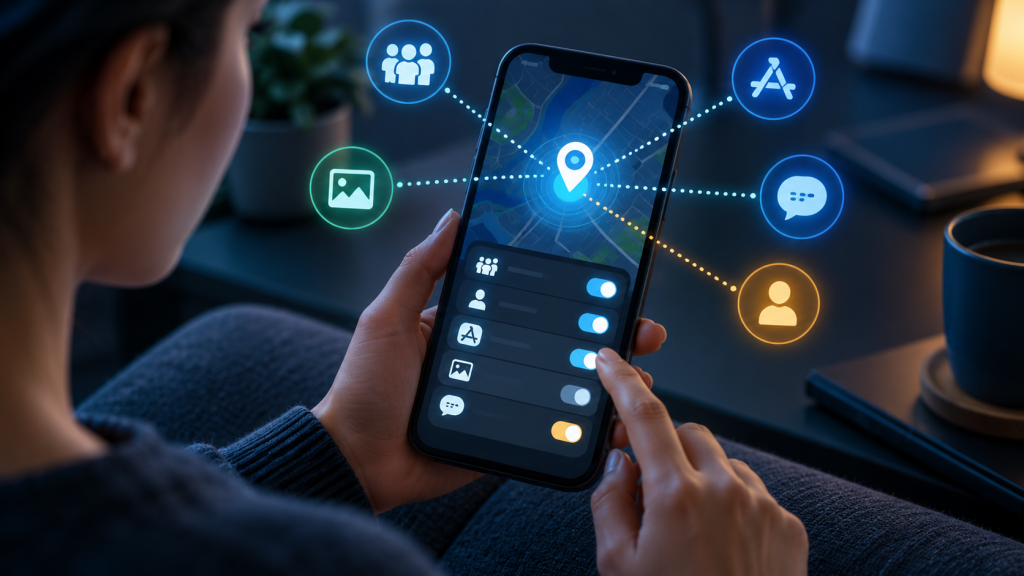
Your phone can share location in more ways than one. A map app may share continuously with a family member. A messaging app may have an active live-location session. A photo can contain location metadata. A car, watch, tablet, or online account may report the position of a device even when the phone’s obvious location-sharing switch looks off.
That is why “Is my location being shared?” cannot be answered by checking a single permission. You need to review people, apps, accounts, devices, and items. If the concern involves a controlling partner, stalking, or immediate personal safety, make changes from a safer place and device when possible; ending sharing can be visible to the other person.
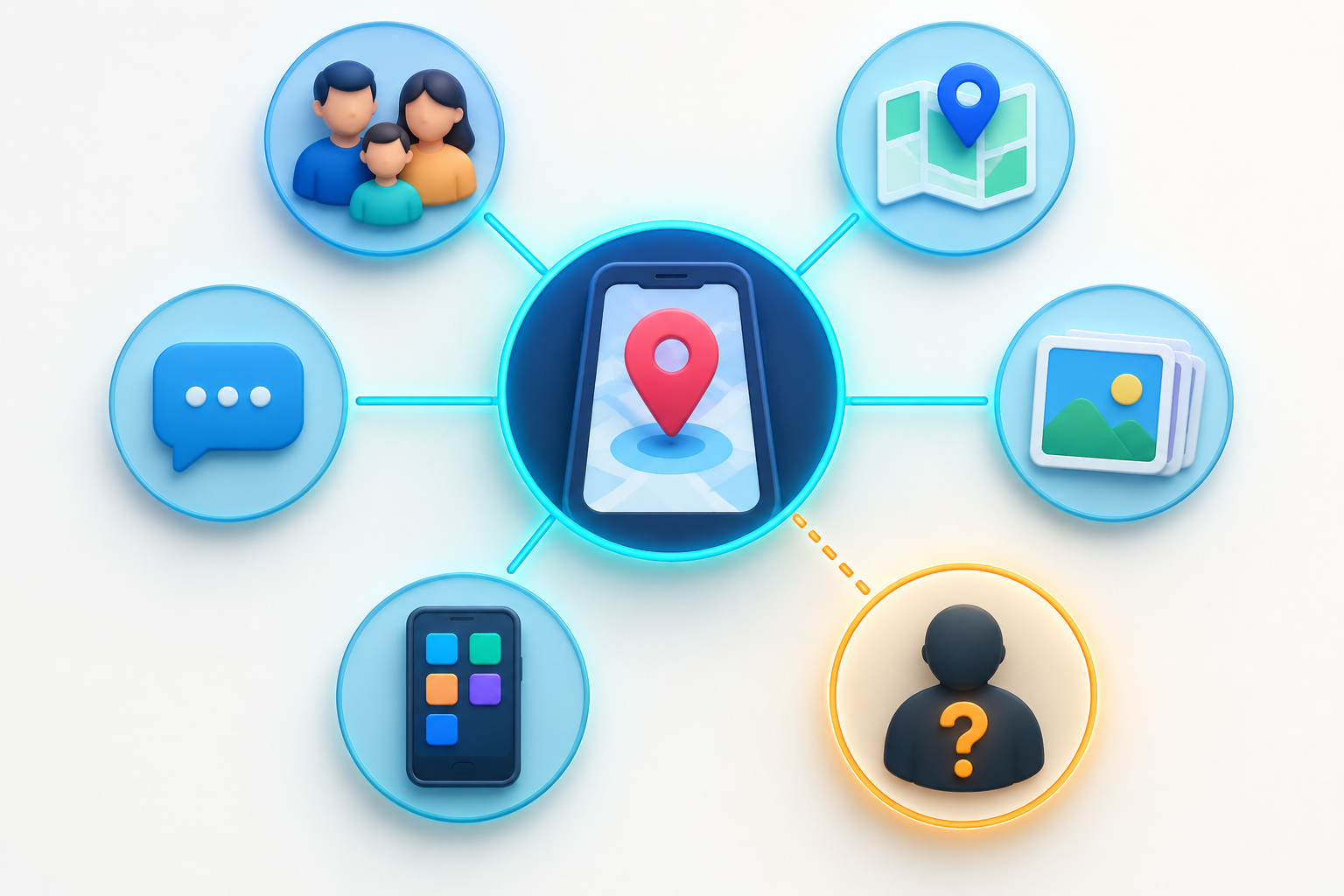
First separate three kinds of location access
- App permission: an app is allowed to obtain the phone’s location.
- Person-to-person sharing: the app or account sends your location to a selected person or group.
- Device or item finding: an account can locate a phone, watch, computer, tag, vehicle, or other connected item.
Turning off one layer does not necessarily stop the others. Denying a map app’s phone permission can interrupt its sharing, but an account may still show another device as your location. Removing a person from one app does not end a live-location session in another.
Before changing settings, consider personal safety
If you believe someone is using location to monitor or threaten you, abrupt changes may alert them. They may receive a notification, see that your position stopped updating, or confront you about a missing device or family connection. Use a phone or computer they cannot access to contact a trusted person, local support organization, or emergency service.
Document the current sharing only when it is safe. Screenshots should include the app, person or account, sharing status, and time, but should be stored somewhere the other person cannot access. A general technical guide cannot replace a safety plan tailored to your location and situation.
Build a map of the accounts on the phone
List Apple, Google, Microsoft, Samsung, messaging, social, fitness, family-safety, carrier, vehicle, and smart-home accounts. Include work and school profiles. Then list other hardware attached to those accounts: watches, tablets, old phones, laptops, trackers, earbuds, cars, and shared home devices.
Ask which account supplies location to each feature. A child-safety service may run inside its own account. A shared Apple or Google login can expose more than an explicit location-sharing list. Separate accounts are usually clearer and safer than several people using one credential.
Google Maps: check every person and link
Open Google Maps from a trusted device. Select your profile picture and Location sharing. Review each person who can see you and how long the sharing lasts. Select an entry and choose Stop when access is no longer wanted.
Check for sharing by link as well as sharing to named Google Accounts. Anyone who still has an active location-sharing link may be able to view it according to the option’s terms. End links that no longer have a clear purpose.
Navigation can also share trip progress temporarily. Google says this sharing normally stops when you arrive or end navigation, but you can stop it early from the trip information. Do not confuse a past trip-share with an indefinite account-level share.
Google location-sharing notifications
A person who sees your Google Maps location may be able to create a notification for arrival at or departure from a place when the feature and account support it. Review Location Sharing notifications in Maps. Google says these notifications stop when location sharing stops, and you can turn off an individual notification separately.
The notification feature is not the same as your phone notifying you that location is in use. One describes another person’s alert about your movement; the other describes app access on the device.
Apple Find My: review People and the source device
Open Find My and choose People. Select every person and review whether your location is being shared. Use Stop Sharing My Location for an individual. Under Me, review Share My Location if you want to stop sharing with everyone.
Check which device is set as My Location. An iPad or another iPhone can be the source. Turning off location services on the phone in your hand may not stop the other device from sharing its position through the account.
Apple documents that deleting the Find My app does not itself stop location sharing. Reinstall the app or use the relevant account settings to end the share. Do not turn off Find My device protection merely to stop sharing with a person; Find My also helps locate a lost device and supports Activation Lock.
Apple Messages, Maps, and Family Sharing
A contact’s conversation in Messages can include location sharing. Open the conversation, select the person’s name, and review the sharing control. Apple states that stopping through the supported controls removes your location from the other person’s Messages view.
Review Family in Settings and open Location Sharing. Family membership can connect people to several services, and leaving or removing someone can affect subscriptions, purchases, child accounts, and shared features. Make a deliberate change rather than dismantling a family group solely because one location setting is confusing.
Maps can have temporary estimated-arrival sharing. Check an active route and any contact listed there. A temporary arrival share should not be mistaken for indefinite Find My sharing.
Apple Safety Check: a guided review
On an iPhone with a supported iOS version, Settings > Privacy & Security > Safety Check provides two approaches. Manage Sharing & Access lets you review individual people, apps, and account security. Emergency Reset is designed to stop sharing more broadly and quickly.
Apple warns that Safety Check cannot review every kind of sharing, including some outside accounts and services. Use it as a structured starting point, then check messaging, social, map, vehicle, family, and work apps separately.
Use Emergency Reset only when its broad effect matches the safety need. Review the current Apple guidance so you understand account, contact, and device changes before completing them.
WhatsApp and other messaging apps
WhatsApp live location belongs to a chat or group and can continue for the duration you selected. Open the relevant conversation and choose Stop sharing. WhatsApp also provides a Privacy area that can list active live-location shares so you can end them without remembering every chat.
Check other messaging and social apps for live map, nearby-friends, check-in, story, and status features. The phone’s location permission tells you whether an app can obtain the position; the app’s own privacy page tells you who can receive it.
Review app permissions and recent access
On Android, use Permission Manager and Privacy Dashboard to see which apps have location permission and which recently used it. On iPhone, use Settings > Privacy & Security > Location Services and App Privacy Report where available.
Narrow permissions that exceed the feature you want. Change Always to While Using when continuous background access is unnecessary, and use approximate rather than precise location when the app can function with it. Removing permission may stop a service, but still open the app’s account settings to confirm that person-to-person sharing ended.
The phone-permissions audit explains how to interpret recent access without assuming every location event is surveillance.
Review links, calendars, and automation rules
Some services share a location through a link that works without the viewer signing in. Look for active links as well as named people. End a link when you do not know who still has it; changing a contact list will not necessarily invalidate a public or semi-public link.
Home automations can also create location-based actions, such as unlocking a door, changing a thermostat, or notifying a household when someone arrives. Review household members and automation rules in smart-home accounts. A rule that uses your location may reveal presence indirectly even if no map is visible.
Shared calendars, ride histories, food-delivery accounts, and transport apps can expose recent or planned places to anyone with account access. Include them when the concern is broader than live tracking.
Check devices, trackers, and vehicles
Review the devices signed into Apple, Google, and other cloud accounts. Remove equipment you no longer own after following lost-device precautions. An old shared tablet may expose maps, messages, or account dashboards even if it is not producing your current position.
Inspect item-sharing in tracker networks and companion apps. A shared tracker, vehicle app, dash camera, fitness watch, or family locator can reveal routes and routines. Also respond to unknown-tracker alerts using the phone platform’s official instructions; do not destroy or confront someone about a device if doing so could increase danger.
Vehicles may retain driver profiles, home and work addresses, trip history, garage controls, and phone-pairing data. Remove old drivers and reset a sold or shared vehicle’s profile according to the manufacturer’s instructions.
Photos, posts, and calendar entries can reveal places
Even without continuous sharing, a photo can contain coordinates, a social post can tag a venue, and a shared calendar can reveal an appointment location. Review location metadata before sharing sensitive images. Check the audience and timing of posts, stories, fitness routes, and public activity maps.
Removing metadata from one copy does not delete copies already uploaded or received. Use each service’s controls to remove content or limit its audience, and remember that landmarks can reveal a place even when coordinates are absent.
Secure the accounts that control sharing
If a person knows the phone passcode or account password, they may be able to restart sharing after you stop it. From a trusted device, change exposed passwords, review recovery methods, remove unknown sessions, and enable strong authentication. Check whether the email and phone number used for recovery are also under your control.
Use the signed-in device audit for Apple, Google, Microsoft, and related sessions. Do not make account changes on a device you believe is remotely controlled.
How to verify that sharing stopped
- Return to each app’s sharing list and confirm the person or link is gone.
- Check active chats, routes, and temporary live-location sessions.
- Confirm which device supplies the account’s location.
- Review phone permissions and recent access after the change.
- Inspect signed-in devices and recovery methods.
- If safe, test with a trusted person who previously had legitimate access.
A stale last-known position may remain visible for a time. Read the timestamp and status instead of treating an old map point as proof that live sharing continues.
What a complete review looks like
A complete location audit covers the sensor, the app, the people, the account, and the hardware. It distinguishes temporary trip sharing from indefinite access and avoids turning off lost-device protection by mistake.
If the concern is ordinary privacy, reduce access methodically. If the concern is interpersonal safety, prioritize a safe device, outside support, and a plan for how visible changes may affect you. The same setting can have very different consequences in those two situations.