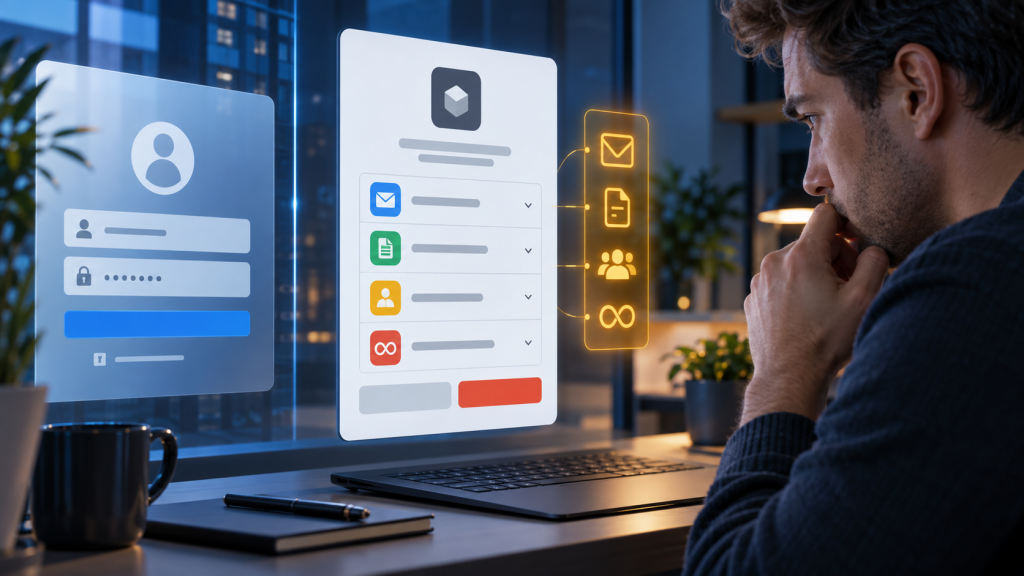
A phishing page is supposed to look fake, or at least sit on a suspicious domain. That assumption helps with many scams, but it fails against a quieter attack: consent phishing. In this attack, the page asking you to sign in may genuinely belong to Microsoft, Google, or another identity provider. The dangerous part comes after sign-in, when an unfamiliar application asks for permission to read, change, or send information in your account.
You can enter your password on the real provider page, use genuine multifactor authentication, and still give the wrong application useful access. The password is not necessarily stolen. Instead, the attacker persuades you to authorize a connection. Microsoft describes this as an illicit consent grant: a malicious cloud application receives permissions that the user was tricked into approving.
This distinction matters because the usual advice—check the address bar and do not type a password into a fake site—does not fully solve the problem. You also need to judge the application, the reason for the request, and every permission on the consent screen.
What consent phishing looks like from the user’s side
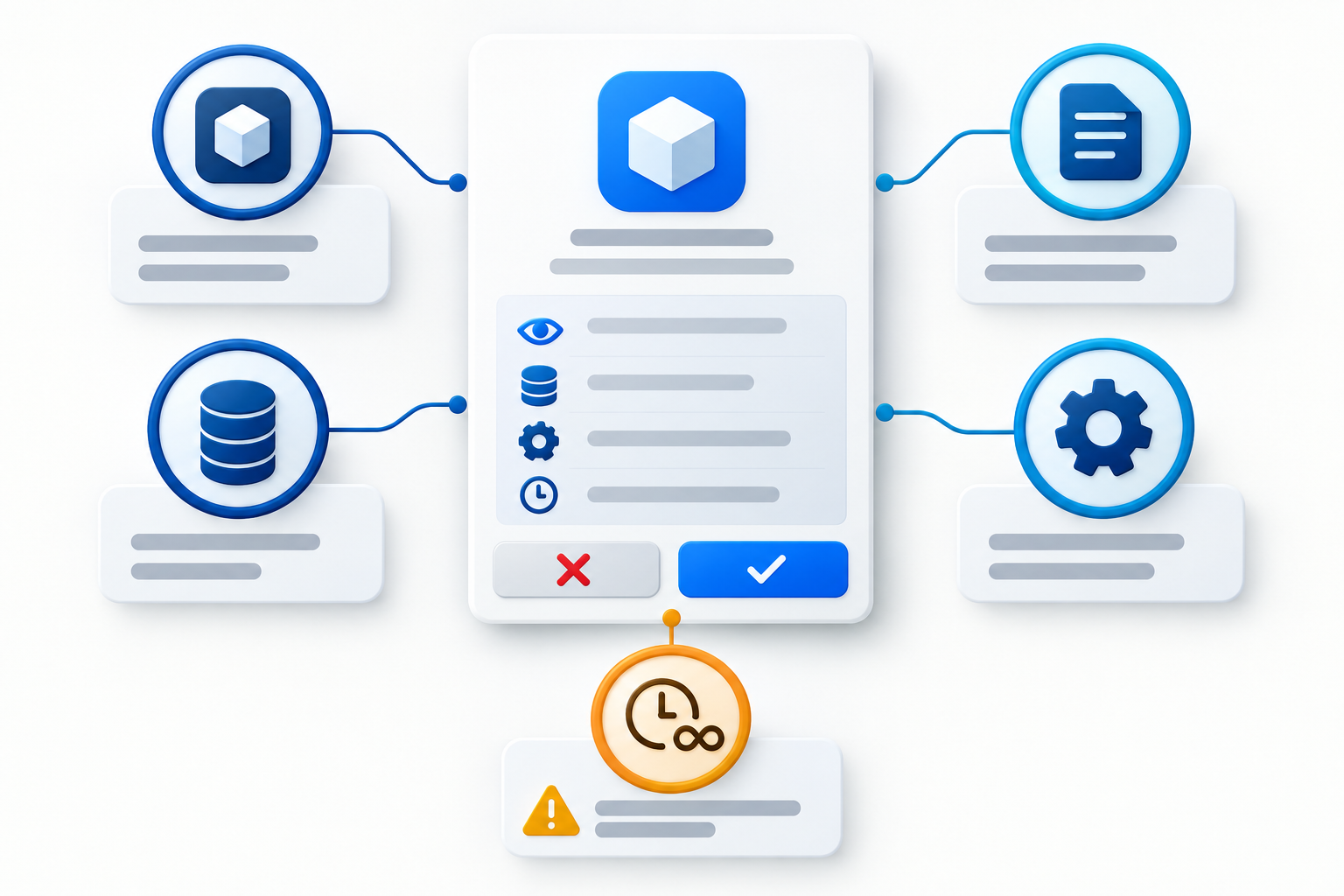
The message may promise a shared document, voicemail, payroll update, meeting recording, security report, or free productivity tool. Its link opens a normal-looking sign-in flow. Sometimes you are already signed in and never see a password box. A genuine provider then displays a screen saying that an application wants access to your account.
The request might include harmless-looking identity details such as your name and email address. It may also request access to mail, contacts, calendars, files, profile information, or other organizational data. Some permissions allow the app to act while you are not actively using it. In a work environment, the screen may mention your organization or say that an administrator must approve the request.
The attacker is relying on a familiar habit: people treat the sign-in button as the important decision and the permission screen as routine paperwork. But in this situation, the permission screen is the security decision.
A real login page proves less than you think
A genuine identity-provider domain proves that the provider is handling authentication. It does not prove that the third-party app has a legitimate purpose, that its developer is trustworthy, or that you intended to connect it. Large platforms are designed to let outside developers request account access. Attackers can misuse that same feature.
Think of the provider as a building receptionist checking your identification. The receptionist can verify that you are really you. That does not make every visitor waiting in the lobby trustworthy, and it does not mean you should hand one of them a key to your office.
This is also why a passkey or authenticator app is not a complete defense against consent phishing. Strong authentication can prevent an attacker from simply replaying a stolen password. It cannot stop you from intentionally approving an application after a persuasive message. Authentication answers, “Who is signing in?” Consent answers, “What may this app do?” Both questions matter.
Consent phishing is not the same as ordinary password phishing
In conventional credential phishing, a fake page collects your username, password, security code, or recovery information. In consent phishing, the attacker may never see those secrets. The malicious app instead receives a token representing the permissions you granted.
That difference changes the response. Changing your password is essential if you disclosed it, but a password change alone may not revoke every application grant. You must also review connected applications and remove the suspicious app’s access. For work or school accounts, an administrator may need to investigate the grant, revoke sessions, and check whether the app accessed data.
Some attacks combine techniques. A link may lead through a real authorization page and then to a fake form. A malicious app may request permissions and later ask for a password. Treat any unexpected journey involving sign-in, approval, file access, or verification as a sequence to evaluate—not as a single page that becomes safe once its domain looks correct.
Read the consent screen as a set of claims
Before selecting Allow, Accept, Continue, or Authorize, make the screen answer five questions.
1. Which application is asking?
Read the exact app name and developer or publisher information. A familiar product word inside an app name does not establish ownership. Attackers can choose names that sound like “Document Viewer,” “Secure Mail,” or a well-known brand. If the platform displays publisher verification, treat it as one useful signal, not a substitute for checking why you arrived there.
2. Why does this app need a connection?
Match the request to an action you deliberately started. If you were only trying to view a document, ask why a new application must read your contacts or send mail. If the message says your mailbox needs verification, ask why verification would require a third-party app at all.
Open the service independently from a bookmark, official app, or manually typed address. Find the relevant document or integration there. Do not use the message link as your only evidence that the connection is necessary.
3. What data can it read?
Look for permission to read email, files, contacts, calendars, profile information, chat, or directory data. “Read” access is not harmless just because it cannot edit. Email and cloud files can contain invoices, password-reset messages, private conversations, customer information, and material useful for more convincing scams.
4. What can it change or send?
Permissions to send mail, edit files, manage contacts, create rules, or act on your behalf deserve especially careful review. Such access can let an attacker use the trust attached to your real account. This is one way a message can later appear to come from a genuine contact rather than an obviously fake address.
5. Can it keep working when you are away?
Wording differs across platforms, but permission to maintain access or work offline can let an app continue using an authorized connection without a fresh prompt every time. Do not approve it merely because the phrase sounds technical. Ask whether the feature genuinely needs ongoing access.
A quick decision rule before you approve anything
Pause if the application, request, or permissions are unexpected. Then verify through a path that the original message did not provide. Contact the supposed sender using a known phone number or an existing conversation. For a work account, ask your IT or security team whether the integration is approved. For a personal service, start from the vendor’s official website and find its documented connection instructions.
Do not let urgency compress the decision. “Approve within ten minutes,” “your document will expire,” and “security verification required” are reasons to slow down, not speed up. Legitimate access requests should survive independent verification.
If you do not understand a permission, deny or cancel the request until you do. You can usually restart a legitimate connection later. Recovering data or trust after approving a malicious app is much harder.
What to do if you already selected Allow
Do not wait for visible damage. A quiet app can be useful to an attacker precisely because nothing dramatic appears on your screen.
- Write down what happened. Record the app name, approximate time, message source, account used, and permissions you remember. Preserve the message and take a screenshot of the consent details if you can do so without exposing passwords, codes, or confidential data.
- Remove the application’s access. Use the provider’s official account settings, not a removal link supplied in the suspicious message. Google lets users review and remove linked apps from their Google Account. Microsoft work and school users may be able to revoke permissions in the My Apps portal, although organizational administrators can be required.
- Review account activity and active devices. Look for unfamiliar sign-ins, devices, sessions, forwarding rules, sent messages, file sharing, or security-setting changes. Our guide to checking signed-in devices provides a systematic review.
- Change the password if it may have been exposed. Do this from the provider’s official app or a manually opened account page. Use a clean, trusted device if the incident involved suspicious software or a browser extension.
- Report the incident. Tell your employer’s security team promptly if a work account or organizational data was involved. Include the app name and timing. The administrator may have visibility and revocation options that an individual user does not.
- Warn affected contacts when necessary. If the app sent messages or shared files as you, use a separate trusted channel to tell recipients what to ignore.
Removing access is different from deleting an app from your phone. Uninstalling local software may leave an online authorization intact. See our explanation of why app access can remain after uninstalling.
Do you need to change every password?
Not automatically. Base the response on what was exposed. If authentication stayed on the real provider page and you only granted app permissions, revoking the grant and investigating its activity are the central tasks. If you typed a password into any page you cannot verify, reused that password elsewhere, approved an unfamiliar MFA prompt, or saw suspicious security changes, change the affected password immediately and address reused copies.
For the primary email account, use extra caution. Email often controls password resets for other services. Review recovery addresses, phone numbers, forwarding, filters, delegates, app passwords, and connected applications. Our email recovery order helps prioritize those checks.
How organizations can reduce the risk
Individuals can read carefully, but organizations should not make every employee the sole approval gate. Microsoft recommends controls such as restricting user consent, limiting approval to verified publishers and selected low-risk permissions, using admin consent workflows, educating users, and monitoring app consent activity. The exact setup depends on the organization’s identity platform and operational needs.
A useful internal policy answers practical questions: Which app store or catalog should staff use? Who approves new integrations? Where should suspicious consent prompts be reported? What information should a report contain? A short, rehearsed path is more effective than a vague instruction to “be careful.”
Organizations should also keep an inventory of authorized apps and remove connections that are no longer needed. An old integration is still part of the attack surface even when everyone has forgotten why it was approved.
The habit that catches this attack
Do not stop your security check at the address bar. When a real service asks you to authorize another application, shift your attention from the login page to the requested relationship. Identify the app, connect the request to an action you initiated, inspect each permission, and verify through an independent route.
The safest response to an unexpected permission screen is simple: cancel it, open the account or service directly, and investigate from there. If the request is legitimate, you can approve it after verification. If it is malicious, that pause prevents a real sign-in system from becoming the delivery mechanism for unauthorized access.