
This guide walks through Google’s linked-app controls: identify the connection type, use the matching removal action, and check what remains. If you are leaving a service across several providers, use the broader app clean-exit checklist for subscriptions, exports and provider-held data.
This guide explains that cleanup without assuming every unfamiliar name is malicious. Many legitimate tools appear under a company name, an old product name, or a service you used once for school or work. The goal is not to remove everything blindly. It is to keep connections you recognize and still need, reduce unnecessary access, and investigate anything that does not fit.
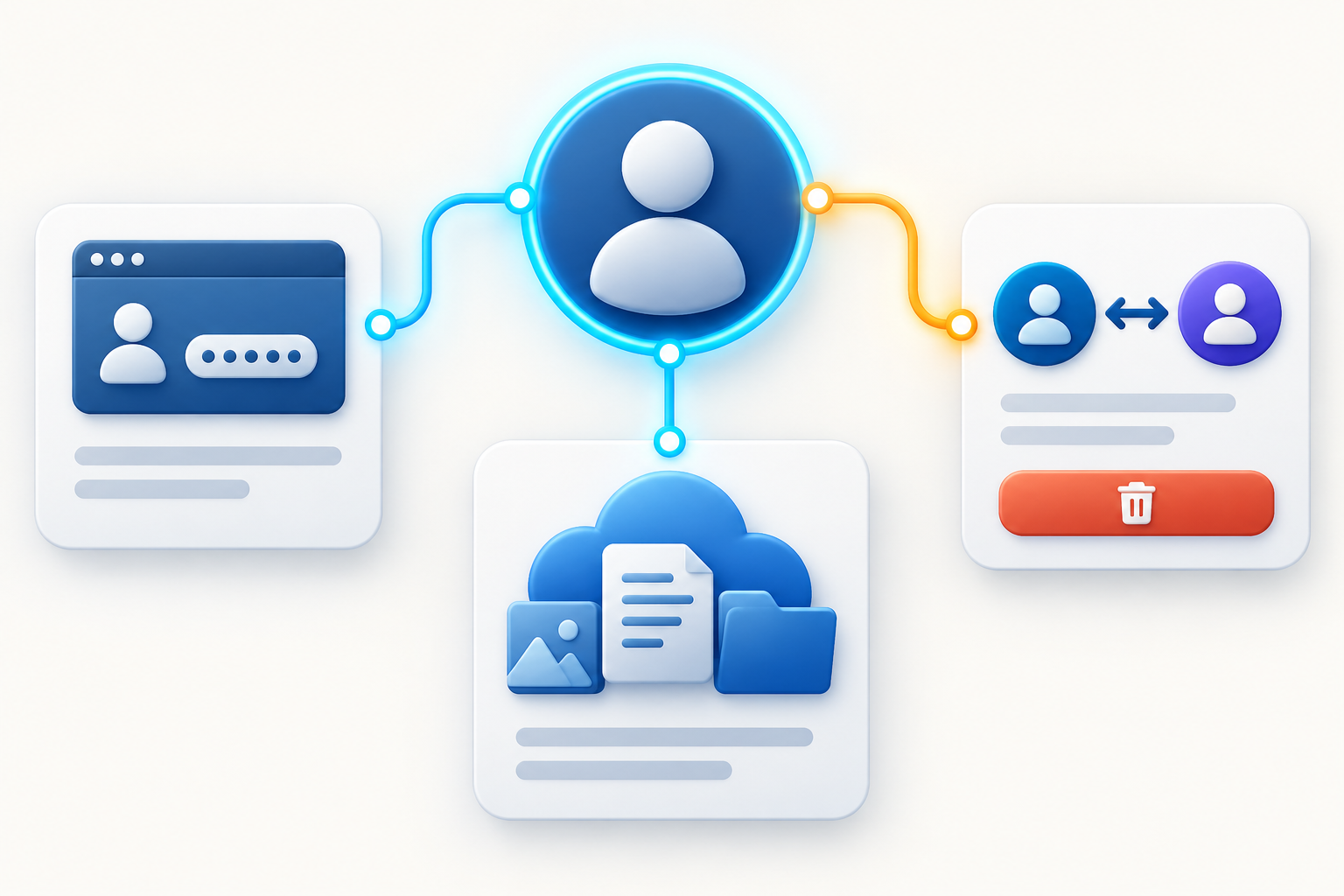
What this cleanup does
Uninstalling removes local software; it does not necessarily revoke a Google connection. Google’s removal controls do not delete data already held by the outside service. If Google was your only login method, arrange another supported way into a service you still need before stopping its sign-in link.
Open the correct Google page
On a trusted device, type myaccount.google.com/connections into the address bar or open your Google Account and find the page for third-party connections. If you have several Google Accounts, check the profile icon and email address before changing anything. Personal, school, and work accounts can each have different connections.
Avoid reaching this page from an unexpected security email or chat message. A convincing fake page could collect your password. Opening the known Google Account address yourself keeps the verification route separate from the message that caused concern.
Google may group connections by what they do. Current labels can include Sign in with Google, access to your Google Account, and accounts linked so Google can interact with another service. The wording may change over time, so focus on the explanation shown for each connection rather than memorizing one menu path.
First pass: build a small inventory
Review the entire list before removing individual items. For each connection, write down four facts:
- the app or developer name;
- the Google Account being reviewed;
- the type and level of access shown;
- whether you still use the service and can explain why it is connected.
This prevents a common mistake: deleting a connection, discovering that an important workflow broke, and then granting it again without examining the permission request. An inventory also helps reveal clusters. Several forgotten tools may come from one old job, school term, phone migration, or project.
Do not judge only by how recently you remember opening an app. A calendar scheduler, email client, backup tool, automation service, or smart-home integration may work in the background. Look at what the connection can do and whether that continuing function is expected.
Understand what the access description means
Basic profile access usually includes information such as your name, email address, and profile picture. Services often request it to create an account. Other permissions can be much broader. Google explains that an authorized app may be allowed to view or copy data, or to manage data by creating, editing, uploading, or deleting it.
The product matters as much as the verb. Read access to a public YouTube playlist is not the same exposure as access to Gmail, Drive, Contacts, Photos, or Calendar. A permission that lets an app manage data deserves more scrutiny than one that only identifies you.
Ask whether the permission is proportionate to the feature. A calendar-booking tool may reasonably need calendar access. A simple wallpaper app has a harder time justifying access to email or cloud files. If the requested data no longer supports a feature you use, removal is usually the cleaner choice.
Use the control for the exact link type
- For Access to your Google Account, select the app, choose See details, read the Google products and permissions, then choose Remove access and confirm when unwanted.
- For Sign in with Google, select the app, open See details, and choose Stop using Sign in with Google and confirm.
- For a Linked account, open the section saying Google has access to that outside account, choose See details, then Delete link and confirm.
One app can have multiple link types. Reopen its details afterward and verify that the specific relationship you intended to remove is absent. A remaining sign-in link is a different result from continuing Google-data access. Record which control you used, not simply “app deleted.” Work or school controls may require administrator help.
Before disconnecting a service you still need
Stopping Sign in with Google can leave you unable to enter an outside account if it was your only sign-in method. Visit the service directly, confirm that the account belongs to you, and look for a way to add a passkey, password, or another supported login method. Store any new credential in a password manager and test it in a separate private window before removing the Google sign-in link.
Export information you need, such as invoices, notes, designs, or project files. Check whether disconnecting will stop scheduled calendar events, cloud backups, email imports, or shared automations. If other people rely on the integration, choose a maintenance time and tell them what will change.
This preparation is not a reason to keep risky access forever. It simply makes removal deliberate and recoverable.
Revocation does not pull back old copies
When you remove access, the app should no longer be able to request new Google data through that authorization. Data it already copied may remain on the provider’s servers. Google’s help pages state that you may need to contact the developer or use the app’s own website to request deletion of information it already has.
Read the provider’s privacy policy and account-deletion instructions. Look for separate controls for activity history, uploaded files, advertising profiles, public content, and backups. Keep confirmation emails or case numbers for a meaningful deletion request. Be cautious about sending extra identity documents: confirm that the request route is genuine and ask why each document is needed.
Deletion may not be immediate or absolute. Providers can have backup cycles, fraud-prevention records, billing obligations, or legal retention requirements. A trustworthy explanation should distinguish data removed from active use from records retained for a defined reason.
What to do with an app you do not recognize
Do not approve a new prompt or visit a link supplied by the app merely to investigate it. Open the connection details inside your Google Account and record the exact developer name and access shown. Search your own email for legitimate signup or authorization receipts, but treat unexpected messages as clues rather than proof.
If you cannot explain the connection, remove its access. Then review the Google Account’s recent security activity, signed-in devices, recovery email and phone number, two-step verification methods, passkeys, and forwarding or delegation settings in Gmail if email exposure is possible. Change your Google password if it was reused, disclosed, or entered on a page you no longer trust.
Removing one suspicious connection is not enough when there are signs of account takeover. An intruder may have created another session, added a recovery method, authorized a second app, or changed an email rule. Use Google’s compromised-account recovery process and secure the account from a device you trust.
If the app itself was breached
A breach notice about a connected service does not automatically mean your Google password was exposed. With properly implemented Sign in with Google, Google does not give the outside service your Google password. However, the provider may hold your email address, profile details, its own session tokens, and data you authorized it to copy.
Verify the notice through the provider’s official site. Revoke unnecessary Google access, change any password that was created for that service and reused elsewhere, and watch the relevant Google products for unexpected changes. The response should match the permission: an app that could manage Calendar data creates different risks from one that could read Drive files or send email.
A repeatable review schedule
Review connected apps after changing jobs or schools, finishing a project, abandoning a subscription, replacing a phone, or responding to a security alert. A calendar reminder every few months can catch forgotten access, but the best interval depends on how often you try new services.
During each review, use three decisions:
- Keep when you recognize the provider, still use the feature, and accept the permission.
- Reduce or reconnect when the service is useful but the existing access seems broader than necessary. Check whether the provider now offers a narrower permission.
- Remove and investigate when the connection is unexplained, obsolete, or disproportionate.
After cleanup, return to the connection list and make sure the result matches your intention. Then check the outside service separately if you want its stored data or account deleted.
The key distinction to remember
Device installation, account sign-in, Google-data permission, account linking, and provider-side storage are separate layers. Removing one layer does not silently solve the others. A complete cleanup asks: Can the app still sign me in? Can it still request Google data? Does Google still interact with its account? Does the provider still keep my information? Is its software still on my devices?
Answer those questions in order and you can remove old connections without either panicking at every unfamiliar label or leaving unnecessary access in place.
How to make the next authorization safer
Cleanup is most useful when it changes the next decision. When a new service asks for access, read every permission before continuing. Check that the developer name matches the product you intended to use, that you selected the correct Google Account, and that the requested Google products are necessary for the feature. A consent screen appearing on a genuine Google domain confirms where authorization is happening; it does not prove that the outside app deserves the access.
Prefer the smallest permission and shortest access period that completes the task. If a one-time import will work, avoid continuing access. If the tool can operate with a single folder or calendar, do not grant an entire account unless the service clearly explains why. Stop when the request changes unexpectedly or asks you to share the Google password directly with the provider.
Keep a brief note for high-impact integrations: why they were connected, who owns the outside account, and when they should be reviewed. That record turns a future list of unfamiliar names into an understandable access map.
Related checks after removing access
Revoking a Google connection is one part of cleanup. Check what uninstalling does and does not remove if the app is still on a device, and review devices and active account sessions when the connection was unfamiliar. If the permission request appeared on a real Google page but felt misleading, the guide to consent phishing explains why a genuine login screen does not automatically make the request trustworthy.
Menu labels can vary as the interface changes.